


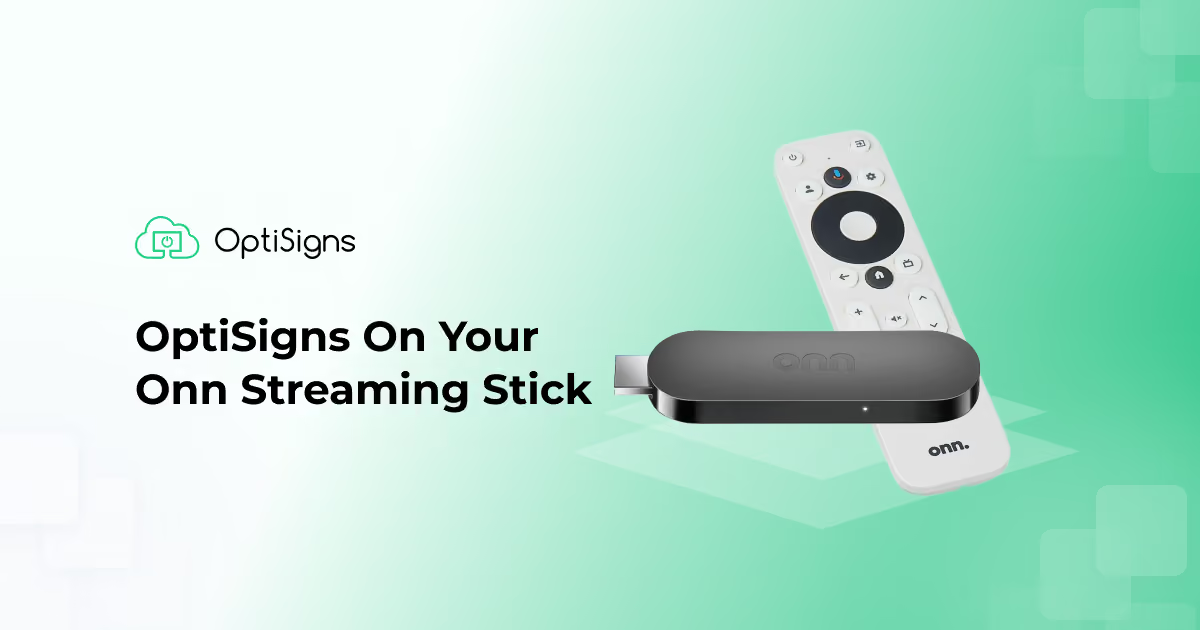
OptiSigns is fully compatible with Walmart's Onn streaming stick, including the entire Onn lineup.
Built on Google TV, the Onn Streaming Stick, Onn Pro, or other Onn Streaming boxes all allow you to install and run OptiSigns on a compatible display.
So, what makes the Onn Streaming Stick a good fit for digital signage, and how does the broader Onn lineup compare? Let’s take a closer look.
Why the Onn Streaming Stick?
Walmart’s Onn Google TV streaming devices have taken the market by storm. The streaming stick form factor, in particular, stands out for several reasons:
- Completely Hidden Setup: Because the Onn Streaming Stick plugs directly into your TV’s HDMI port and tucks away discreetly behind the screen, your physical setup stays clean, wire-free, and professional.
- Unbeatable Cost-Efficiency: Scaling multi-screen deployments don't have to break the bank. At a fraction of the cost of traditional commercial media players, you can outfit an entire office or store affordably.
- Universal Onn Support: Whether you deploy the standard Onn Streaming Stick or other Onn boxes, OptiSigns is optimized to run smoothly across the entire family of Onn devices powered by Google TV.
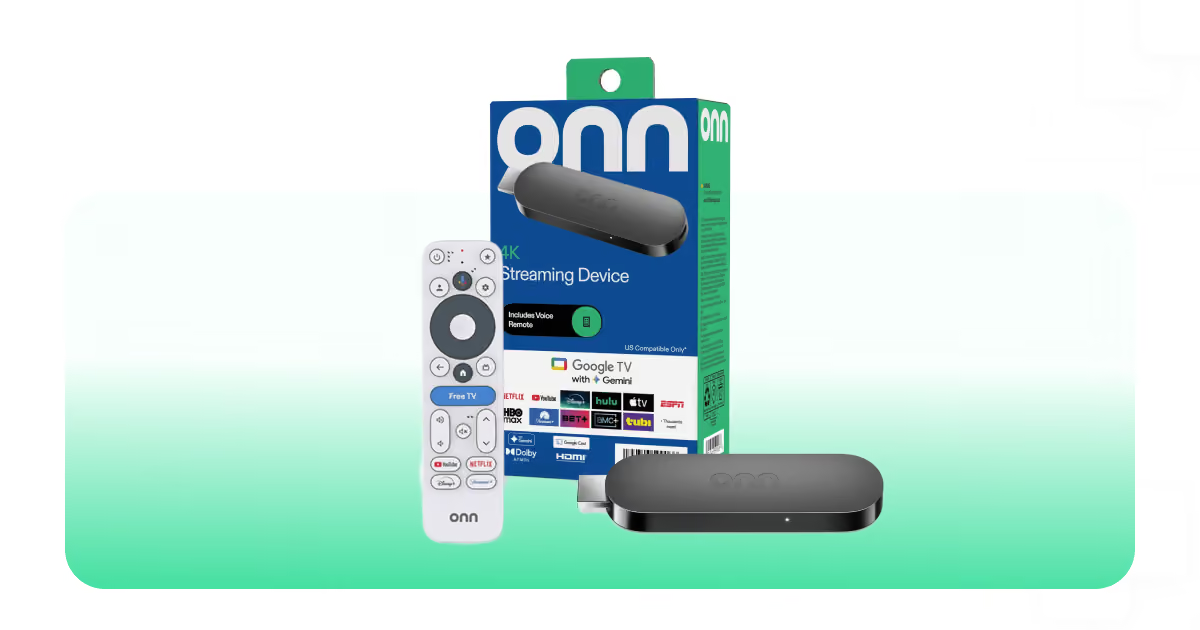
How to Set Up OptiSigns on Your Onn Streaming Stick
Getting your OptiSigns digital signage up and running on an Onn device is simple. Since Onn operates like any standard Android TV device, you don't need any complex technical configuration.
Here is how you can have your screen up and running in just a few minutes:
Step 1: Connect and Power Up
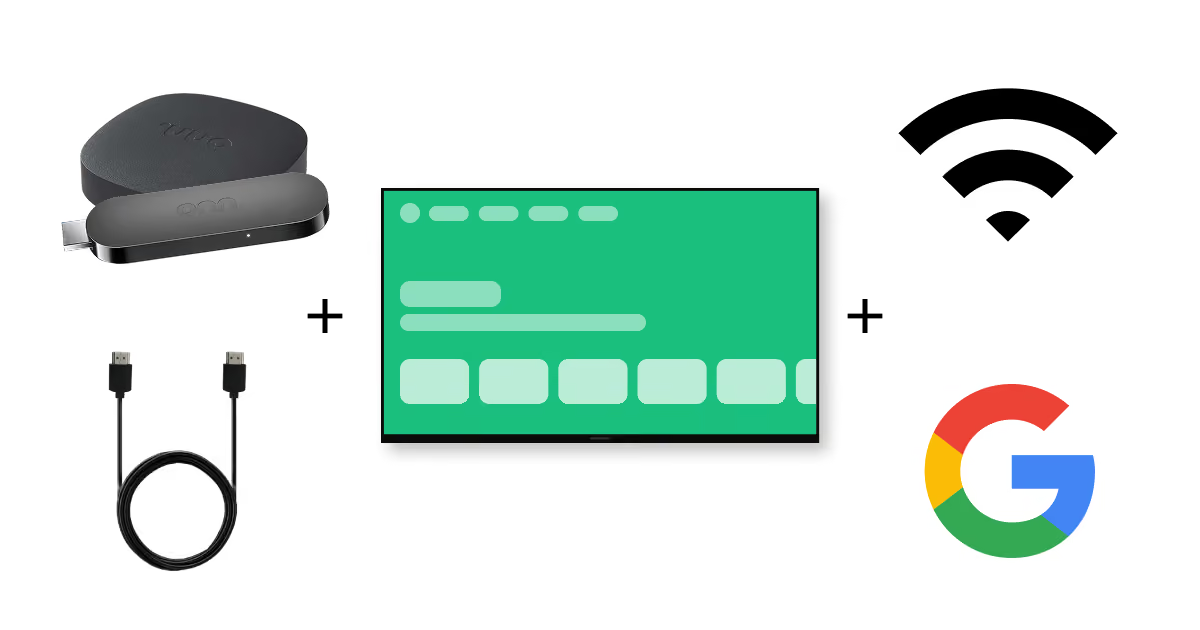
Plug your Onn Streaming Stick into an available HDMI port on your TV, connect it to power, and follow the initial on-screen setup prompts to connect to your Wi-Fi network and sign into your Google account.
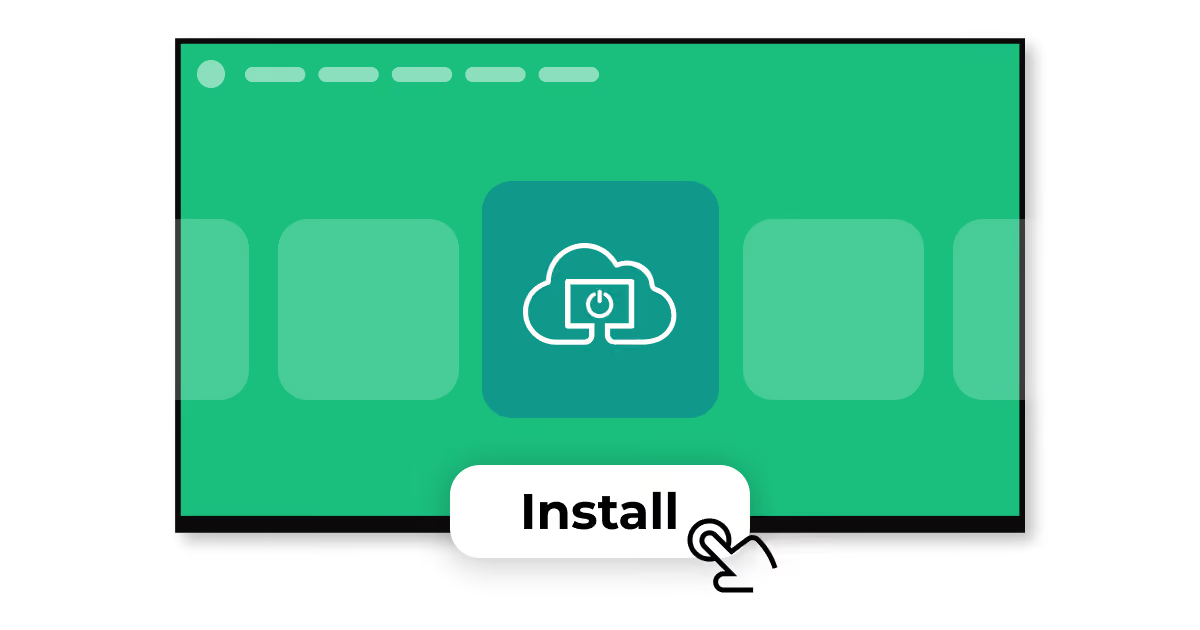
Step 2: Download the App
Navigate to the Google Play Store directly from your Onn home screen, search for OptiSigns, and click Install.
Step 3: Pair Your Screen and Go Live
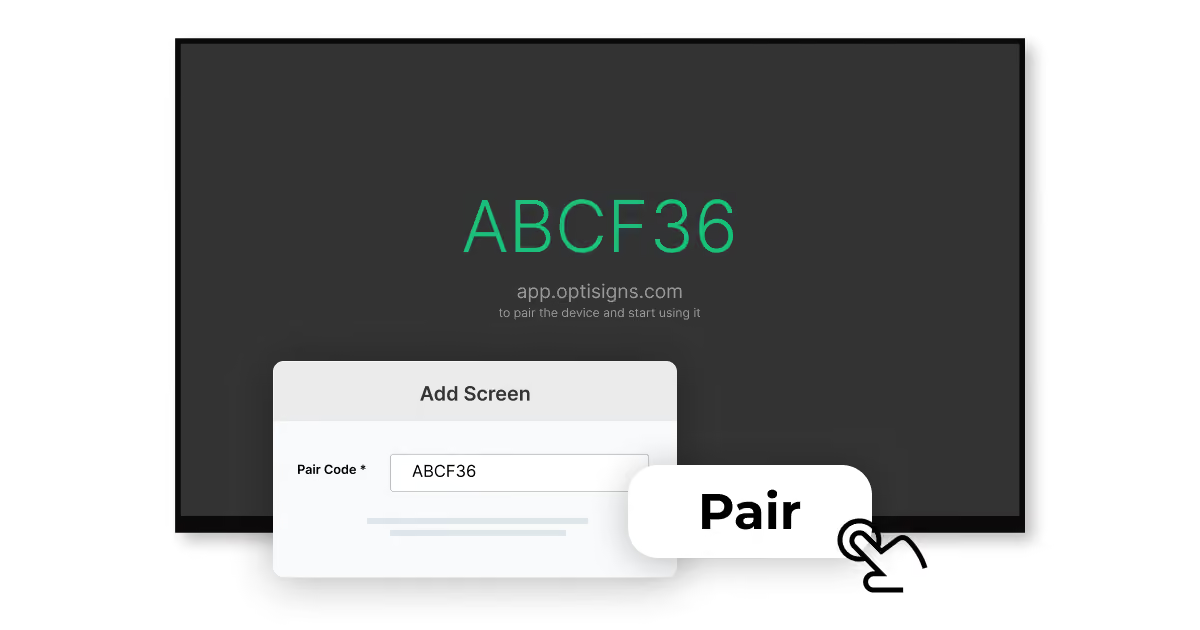
Open the OptiSigns app on your Onn device. A unique pairing code will appear on your TV screen.
Then, log in to the OptiSigns Web Portal, go to Screens, click Add Screen, and enter the pairing code. Once your screen is paired, assign your content and you’re ready to go live.
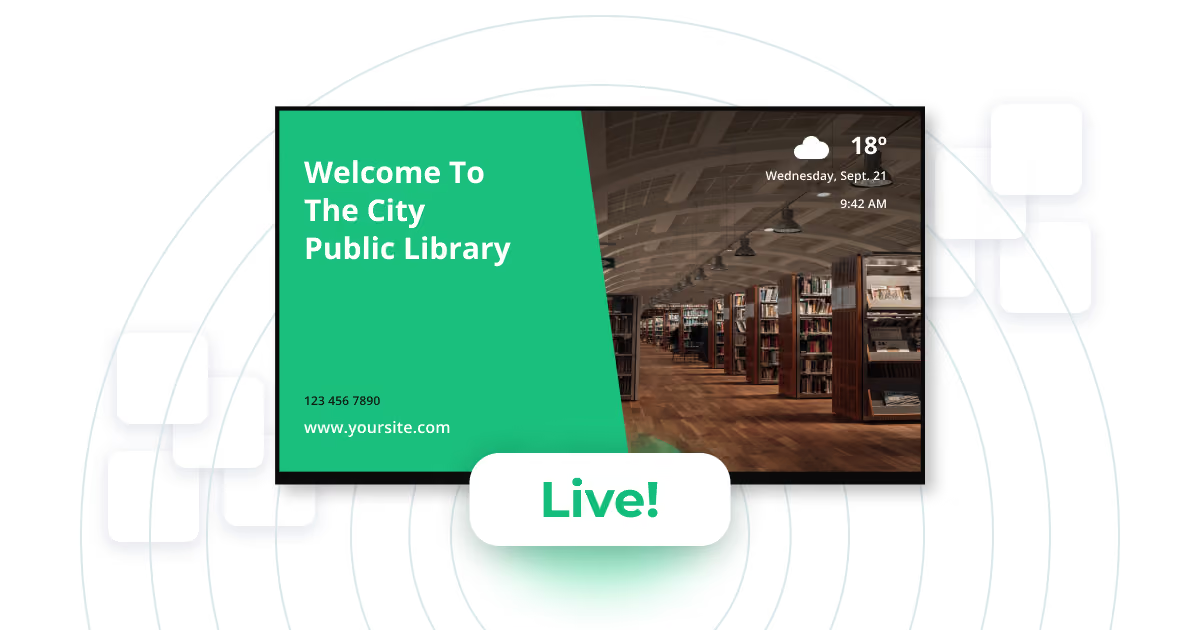
Just like that, you're ready! Now start assigning images, HD videos, dynamic playlists, social media feeds, live dashboards, templates, and more. Manage, update, and schedule your content from anywhere in the world with just a few clicks.
Ready to Transform Your Displays?
Whether you are deploying your very first digital sign or scaling up across dozens of locations, the combination of OptiSigns and the Walmart Onn Streaming Stick or Boxes gives you a powerful, reliable, and pocket-friendly solution.
Grab an Onn Streaming device, download the app, and see how simple managing your screens can be.


