


Your sales team checks Salesforce all day, but the numbers that matter most rarely leave the laptop. Pipeline, quota attainment and this month's wins sit behind a login, visible to whoever remembers to open the right tab. Meanwhile, the TVs on your sales floor show screensavers or static photos.
With OptiSigns, your Salesforce dashboards can sit right where the team works, and every closed deal can go up on the board within seconds of it happening. Better yet, you can better celebrate every win, and even get your remote teams in on the action.
The new OptiSigns Salesforce app puts your Salesforce dashboards and reports on any screen, and Inbound Webhooks in OptiSigns Designer let Salesforce push a "Deal Won!" moment straight to your displays.
Why Put Salesforce on Digital Signage?
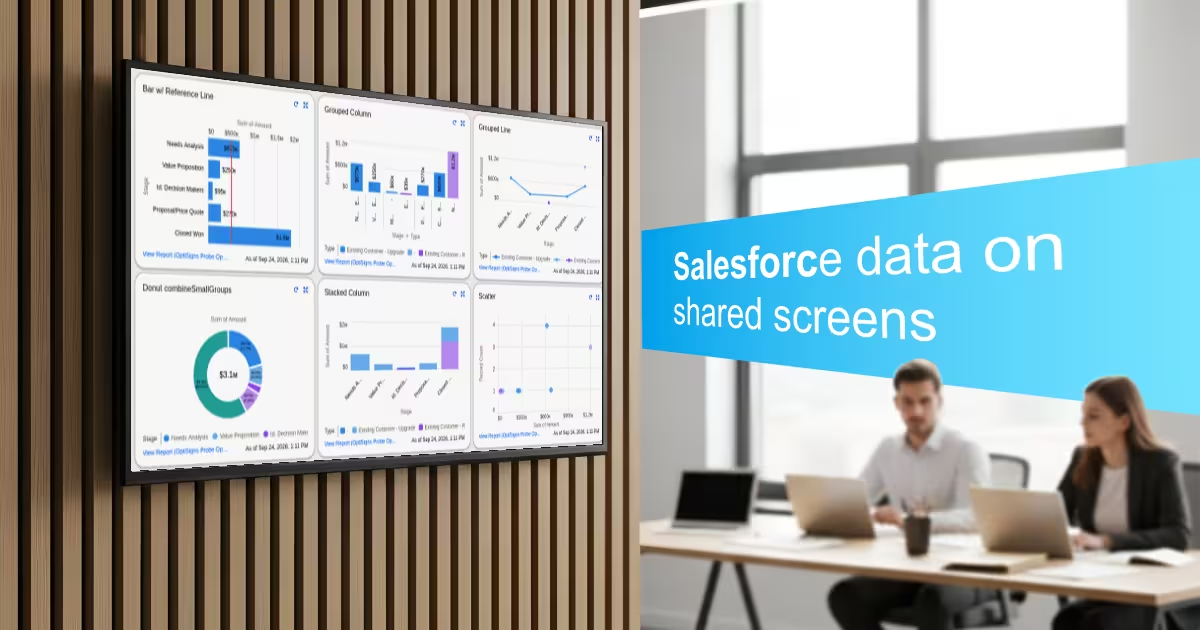
Dashboards only drive behavior when people actually see them. Putting Salesforce data on shared screens turns private reports into a team scoreboard:
- Everyone stays in the loop. It’s estimated that almost 2.7 BILLION workers are deskless. That’s almost 80% of all workers, and almost certainly includes some of your outbound sales team. These are workers who are not going to be starting at a Salesforce sheet night and day. They need an easily accessed display to keep up with the numbers.
- Goals feel real. A bookings-vs-quota chart on the wall is harder to ignore than one buried in a browser tab.
- Wins get celebrated. Recognition in front of the whole floor builds momentum in a way a Slack message can't.
- Your CRM stays secure. Screens show a picture of the dashboard, so no one can click into Salesforce from a hallway TV.
How to Display Salesforce Dashboards with OptiSigns
The OptiSigns Salesforce app captures a fresh image of your dashboard or report on a schedule you choose, then shows it on your screens. Setup takes a few minutes.
Step 1: Connect Salesforce
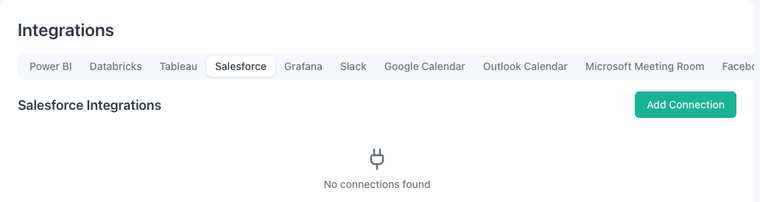
In the OptiSigns portal, go to Company Settings > Integrations and open the Salesforce tab.
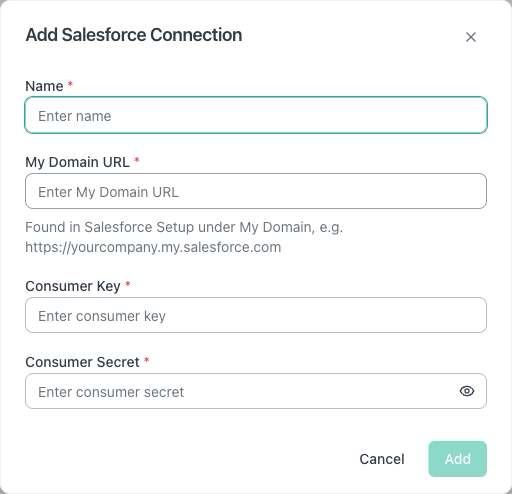
Add a connection with your Salesforce My Domain URL and the Consumer Key and Secret from your Salesforce admin, then sign in with your Salesforce account. You only have to do this once for your team.
Step 2: Add the Salesforce app
Go to Files/Assets, open Apps and choose Salesforce. Give the app a name and select your Salesforce connection.
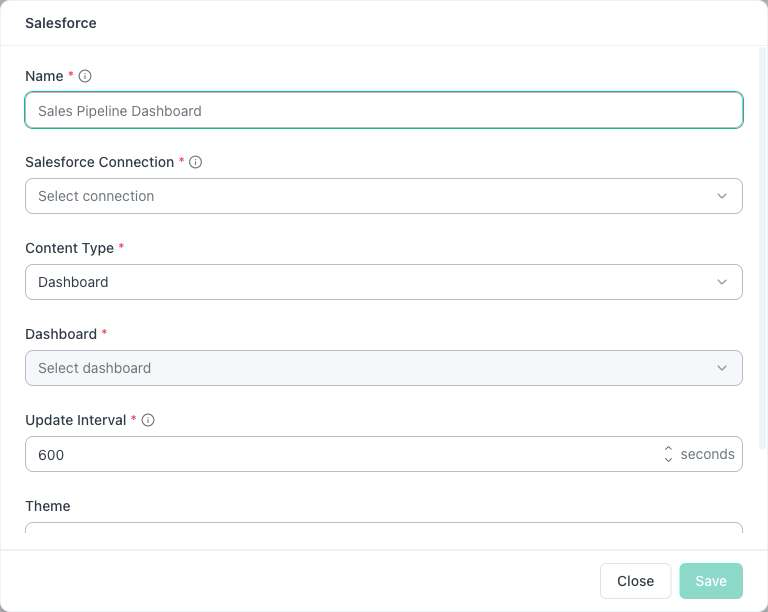
Set Content Type to Dashboard to show a full Salesforce dashboard, or Report to show a report's chart. Then pick the one you want from the list.
Set the Update Interval anywhere from every 5 minutes to every 12 hours. OptiSigns grabs a fresh copy of the dashboard on that schedule, so your screens stay current without anyone touching them. You can also pick a theme so the display matches your space.
Step 3: Push it to your screens
Save the app, add it to a playlist or schedule alongside your other content, and assign it to the screens where your team works.
Ideas to try
- Sales floor: pipeline by stage, bookings vs. quota and top reps this month.
- Customer success: open cases by priority, CSAT trends and upcoming renewals.
- Break rooms and lobbies: company milestones mixed into your regular playlist.
- Meeting rooms: the weekly executive dashboard, ready before the meeting starts.
Celebrate Closed Deals Automatically with OptiSync
Dashboards have the actual numbers, but those are a bit dry, if we’re being honest.
Celebrations give the team the moment itself. But those moments aren’t best delivered with a Dashboard.
By pairing your Salesforce dashboard with OptiSigns Designer’s OptiSync capabilities, you can create a dynamic, real-time notification whenever a deal is struck.
How it works
- Design your "Deal Won!" layout. In Designer, build a celebration with an OptiSync Repeater that holds the rep's name, the account, the deal size and a photo or logo.
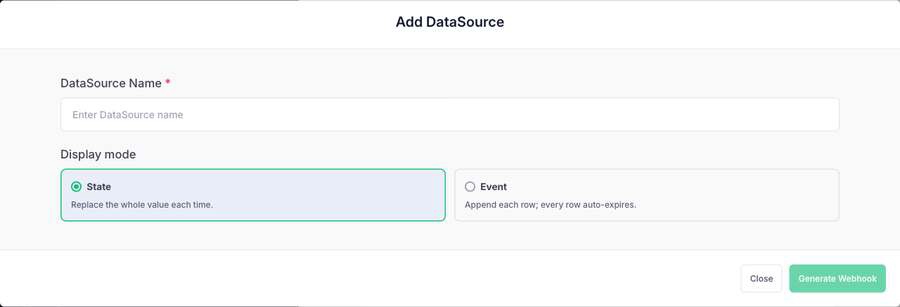
- Add an Inbound Webhook data source. In the Repeater's DataSources panel, choose Add DataSource > Inbound Webhook and pick a display mode.
- Event mode adds each new win as its own row that clears itself after a set time.
- State mode replaces the value each time, which is perfect for a running total.
- Click Generate Webhook to get your unique URL.
- Have Salesforce send the deal. In Salesforce, create a record-triggered Flow on Opportunity that runs when the Stage changes to Closed Won, with a callout that posts the deal details to your webhook URL. Prefer no-code? Zapier or Make can do the same thing.
- Watch it land. Within seconds, the new win appears on every screen showing the design.
Webhooks work with any system that can send a POST request, so the same design can celebrate new customers in the lobby, a record month, or a rep hitting quota.
Inbound Webhooks are part of Dynamic Data Mapping in Designer, available on Pro Plus, Engage, and Enterprise plans.
Turn Your Screens Into a Sales Scoreboard
Pair the two: keep your Salesforce dashboards on rotation so everyone knows where the quarter stands, and let webhooks break in with celebrations when a big deal closes. Your screens stop being static signage and start driving your team forward.
Get started right now with our 14-Day FREE trial. No credit card required.
Frequently Asked Questions
Here, we'll tackle some of the more frequently asked questions we receive on Salesforce digital signage.
Can I show a Salesforce dashboard on a TV?
Yes. The OptiSigns Salesforce app shows your Salesforce dashboards and report charts on any TV or screen running OptiSigns, and refreshes them automatically on the schedule you set.
How often do Salesforce dashboards update on my screens?
You choose. The update interval can be set anywhere from every 5 minutes to every 12 hours.
Do my screens need to be logged in to Salesforce?
No. You connect Salesforce once in the OptiSigns portal. Your screens only receive an image of the dashboard, so there's no Salesforce login on the device and no way to click into your CRM from the display.
Can I show a Salesforce report instead of a dashboard?
Yes. Set Content Type to Report and OptiSigns will display the report's chart.
How do I announce closed deals on digital signage?
Use an Inbound Webhook in OptiSigns Designer. A Salesforce Flow, or a tool like Zapier or Make, sends the deal details to your webhook URL when an opportunity closes, and your "Deal Won!" design updates within seconds.
Which OptiSigns plans include Inbound Webhooks?
Inbound Webhooks are part of Dynamic Data Mapping, available on Pro Plus and Enterprise plans.
Explore More Resources
- How to Display Power BI on a TV or Screen
- Using Digital Signage for Internal Communications: 12 Strategies
- Meeting Room Digital Signage: 5 Ways to Use Your Conference Room Screens
New to OptiSigns? Start a free trial and see how digital signage can elevate your business.


