


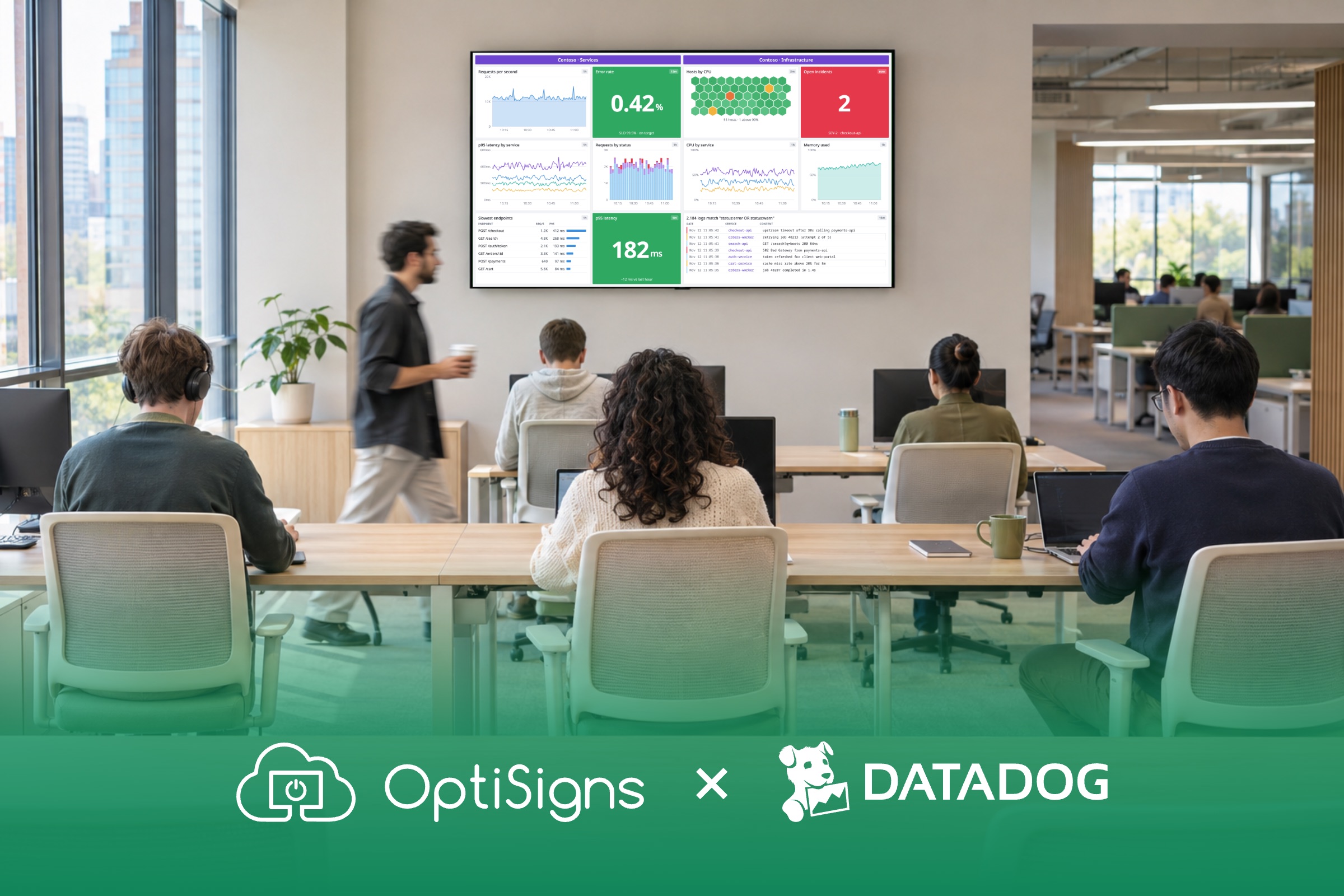
With OptiSigns, you connect Datadog once, pick a dashboard and send it to any TV. It plays live through Datadog's own secure embed, with no public link, no one signing in on the screen and no keys on it. It works with every Datadog cloud site.
Why put Datadog dashboards on a TV?
Build it once in Datadog. Let the whole team see it.
A dashboard only helps the people who look at it. Your team already watches its services in Datadog. The gap is getting that view in front of everyone, not just whoever has the tab open.
- Outages are expensive. In the Uptime Institute's 2025 annual survey, 57% of respondents said their most recent major outage cost more than $100,000.1 New Relic's survey of 1,700 IT and engineering professionals puts the median cost of a high-impact outage at $2 million per hour.2
- Many hear it from customers. In the same New Relic survey, 41% of leaders said they still learn about service interruptions through inefficient routes such as customer complaints, incident tickets or manual checks.2
- Everyone sees the same picture. A dashboard on the wall shows the whole team the same numbers, so a glance tells everyone whether the day is going to be a bad one.
Why is it so hard to keep Datadog on a TV?
Datadog works. Keeping it on a TV all day is the hard part.
Datadog is built for a person at a desk, and the usual ways of putting it on a TV break on a screen that never turns off:
- The easy link gets flagged. Datadog's own default security rule flags every public dashboard link that is created or changed as a risk of unintended data disclosure.3
- The TV gets signed out. A signed-in browser runs on a real person's session, which times out at the limit your admin sets. Then the wall shows a login page until someone walks over.
- Every TV needs a PC. Each screen needs its own Raspberry Pi, mini PC or old laptop to buy and run a kiosk browser on. Each one is another device to patch, restart and fix, so the TVs take an engineer's time every week.
How OptiSigns solves each of these problems
Connect once. No public link, no sign-in on the screen, no kiosk browser to babysit.
The usual way
With OptiSigns
The usual way
The easy link gets flagged
With OptiSigns
01
No public link, nothing to flag
You pick a dashboard in OptiSigns, and it plays through a secure Datadog link that expires and renews on its own, never a public one.
The usual way
The TV gets signed out
With OptiSigns
02
No sign-in, no login page
You connect Datadog to OptiSigns once, and the TV plays the dashboard with no Datadog login to time out.
The usual way
Every TV needs a PC
With OptiSigns
03
One setup, every screen
You connect Datadog once in the OptiSigns portal, and anyone on your team who makes apps can send a dashboard to any screen.
1. No public link, nothing to flag
You pick a dashboard in OptiSigns, and it plays through a secure Datadog link that expires and renews on its own, never a public one. It's the route Datadog itself offers for screens like kiosks and NOC walls.4 The Help Center guide covers the setup.
For your security team. OptiSigns connects with API and application keys, not a user sign-in. The keys stay encrypted on OptiSigns servers and never reach the screen, and OptiSigns copies none of the dashboard data. Screens fetch the dashboard link through signed requests, and that link is short-lived and never stored.
2. No sign-in, no login page
You connect Datadog to OptiSigns once, and the TV plays the dashboard with no Datadog login to time out. An unattended TV shouldn't hold anyone's login.
Datadog keeps the dashboard live, and the screen renews its secure link on its own, so there's nothing to refresh. If the network drops, the screen keeps what it has and retries by itself. The whole dashboard fits the screen once TV mode is on.
3. One setup, every screen
You connect Datadog once in the OptiSigns portal, and anyone on your team who makes apps can send a dashboard to any office screen. The 20th TV takes no more setup than the first.
- Datadog admin. Turns on embed sharing in Datadog and creates the API key. The application key is best made from a Datadog service account.
- Team admin. Adds the Datadog connection in OptiSigns once, and OptiSigns checks the keys with Datadog before anything goes on a screen.
- Anyone who makes apps. Picks a dashboard from your Datadog organization's list and sends it to the screens.
- Security team. Reviews a setup where the keys stay on the server and nothing signs in on the screen.
Dashboards play in playlists on OptiSigns-supported players, with no kiosk browser to look after.
The one thing to know. Each dashboard you set up looks the same on every screen it plays on. For a different team or environment, set up one dashboard per view and send each to its own screens.
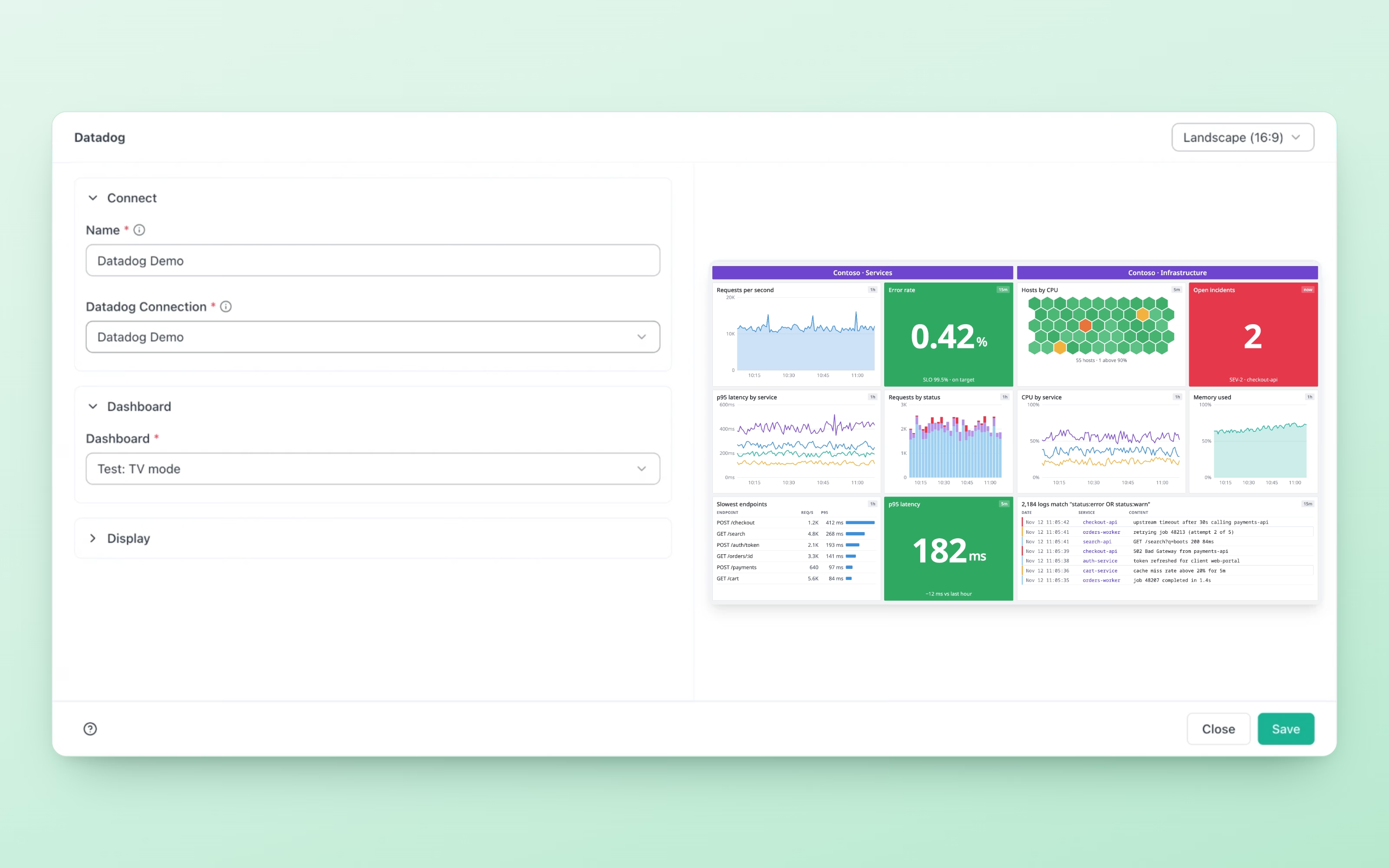
Works with your Datadog site
Every Datadog cloud site works.
The OptiSigns Datadog app connects to all of Datadog's cloud sites, including:
| Datadog site | Where it is |
|---|---|
| US1 | app.datadoghq.com, United States |
| US3 | us3.datadoghq.com, United States |
| US5 | us5.datadoghq.com, United States |
| EU1 | app.datadoghq.eu, Germany |
| AP1 | ap1.datadoghq.com, Japan |
| AP2 | ap2.datadoghq.com, Australia |
| UK1 | uk1.datadoghq.com, United Kingdom |
Running more than Datadog? The full guide to putting any dashboard on an office TV covers your other tools, including Grafana dashboards on digital signage.
DATADOG + OPTISIGNS
Turn your Datadog dashboards into a wall the whole team sees
Connect Datadog once and put your dashboards on every screen. No public link. No one signing in on the TV.


