


OptiSigns Unified Device Management connects your existing meeting rooms through the enterprise integration methods your IT team already uses — then runs digital signage on their displays between meetings, and clears it the moment a meeting starts.

OptiSigns Unified Device Management is a cloud platform that connects your existing Zoom Rooms, Microsoft Teams Rooms, Cisco Webex, and Google Meet systems, then runs digital signage on their displays between meetings. It installs nothing on the room device, syncs every room into one list alongside your other screens, and charges a license only for the rooms you turn on.
This guide walks through exactly how that works — the integration method for each platform, what happens after you connect, and where licensing kicks in.
The problem: your biggest screens sit idle, and your rooms live in four portals
Walk past your conference rooms on a typical afternoon. Most are empty, and most of their displays — often the largest screens in the building — show nothing but a vendor logo. That screen is paid for, mounted, powered on, and seen by everyone who passes. It just isn't doing anything.
Managing those rooms is its own tax. To check room health, change a setting, or restart a device, IT teams jump between the Zoom Web Portal, the Microsoft Teams admin center, Cisco Control Hub, and the Google Admin console — four tools, four logins, four mental models.
Unified Device Management addresses both problems at once: it fills the idle screens with signage and brings every room into a single list.
How it works, at a glance
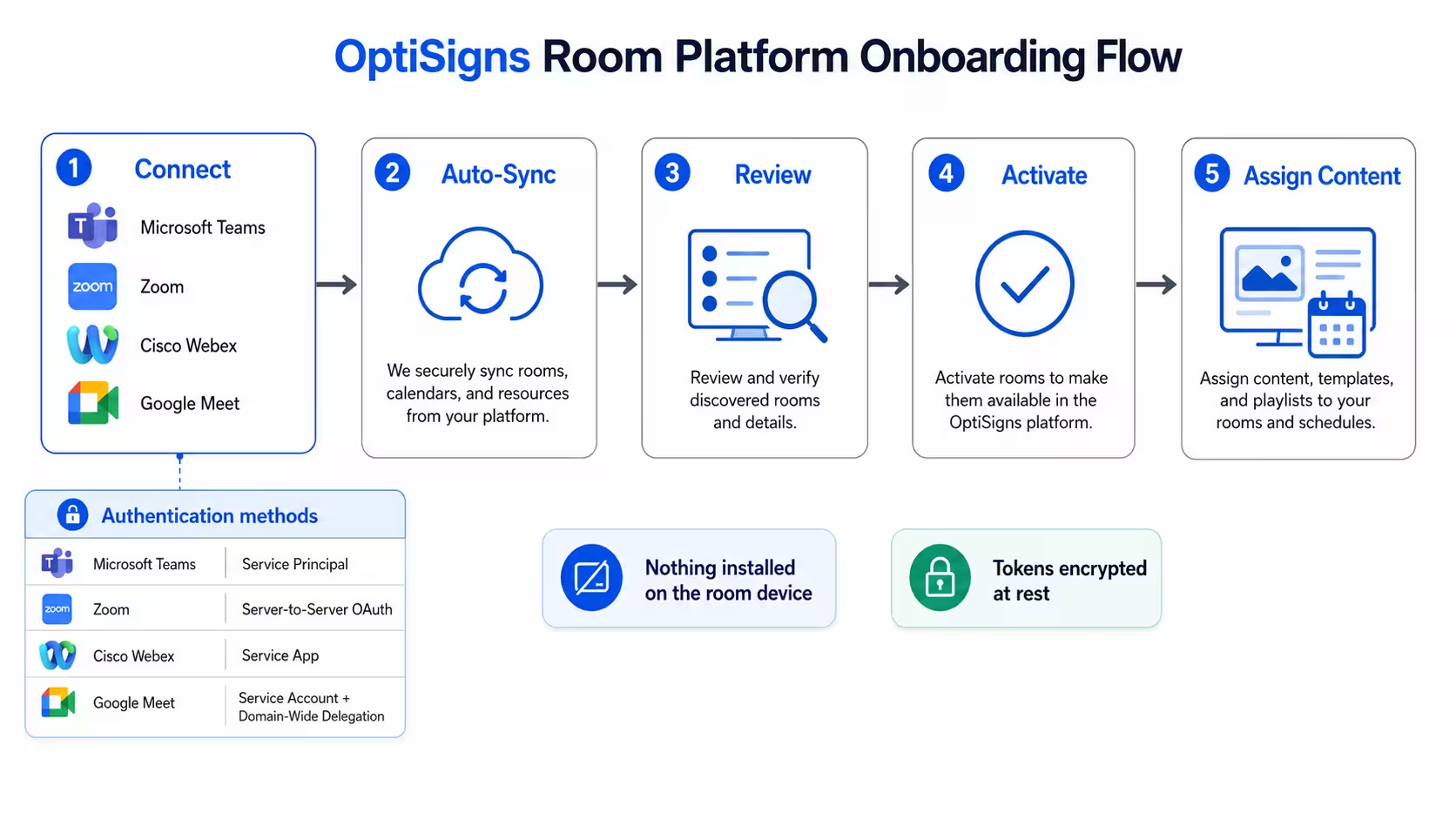
Five steps, start to finish:
- Connect each meeting-room platform using its standard enterprise integration method.
- Sync — OptiSigns enumerates your rooms automatically.
- Review the synced rooms before anything goes live.
- Activate the specific rooms you want to turn on.
- Assign content — playlists, schedules, and apps that play when the room is idle.
One thing to underline before the details: nothing is installed on the room device. No agent, no sideloaded app, no firmware change. The connection happens in the cloud, through the same admin patterns your IT team already uses.
Step 1: Connect your existing meeting-room platforms
This is the part IT cares about most, so let's be specific. OptiSigns connects to each vendor through that vendor's normal enterprise integration method — the same mechanism you'd use to grant any trusted business application access. Connection credentials are encrypted at rest with AES-256-GCM, and the OAuth state used during setup is cryptographically signed.
All four platforms are live today. You do not need to standardize on one vendor.
Microsoft Teams Rooms: Bring-your-own Service Principal
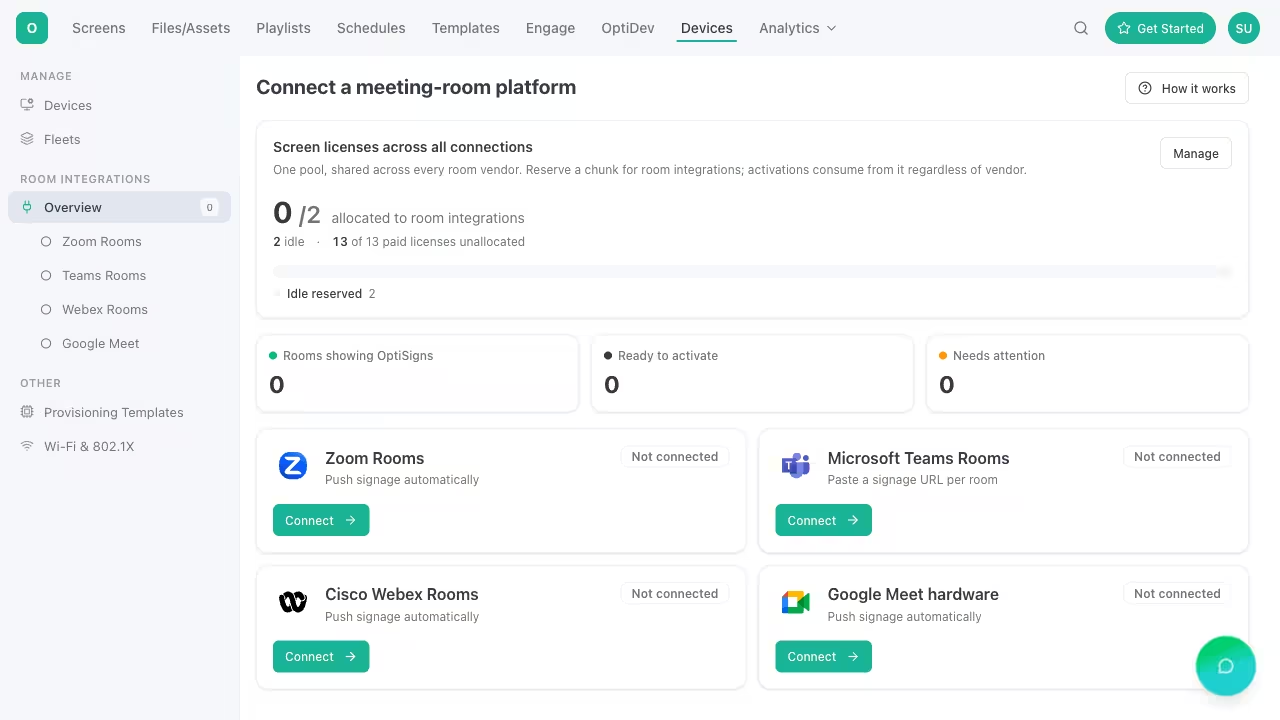
You connect Teams Rooms with a Microsoft Entra Service Principal, an app registration in your own tenant. You provide the tenant ID, client ID, and client secret, plus a room (impersonation) mailbox. This is the standard Microsoft pattern for granting an application scoped access, and because the app registration lives in your tenant, you control and can revoke it at any time. (There's also a simpler paste-the-signage-URL option if you don't need full management.)
Zoom Rooms: Server-to-Server OAuth
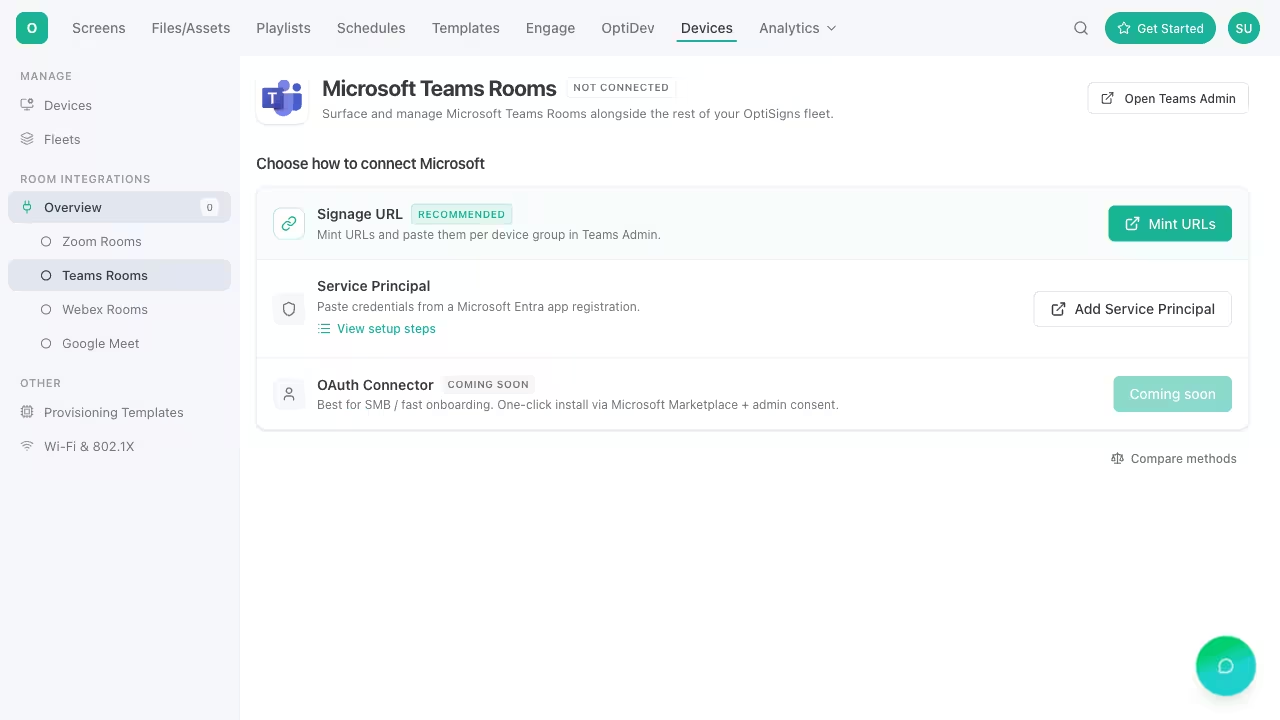
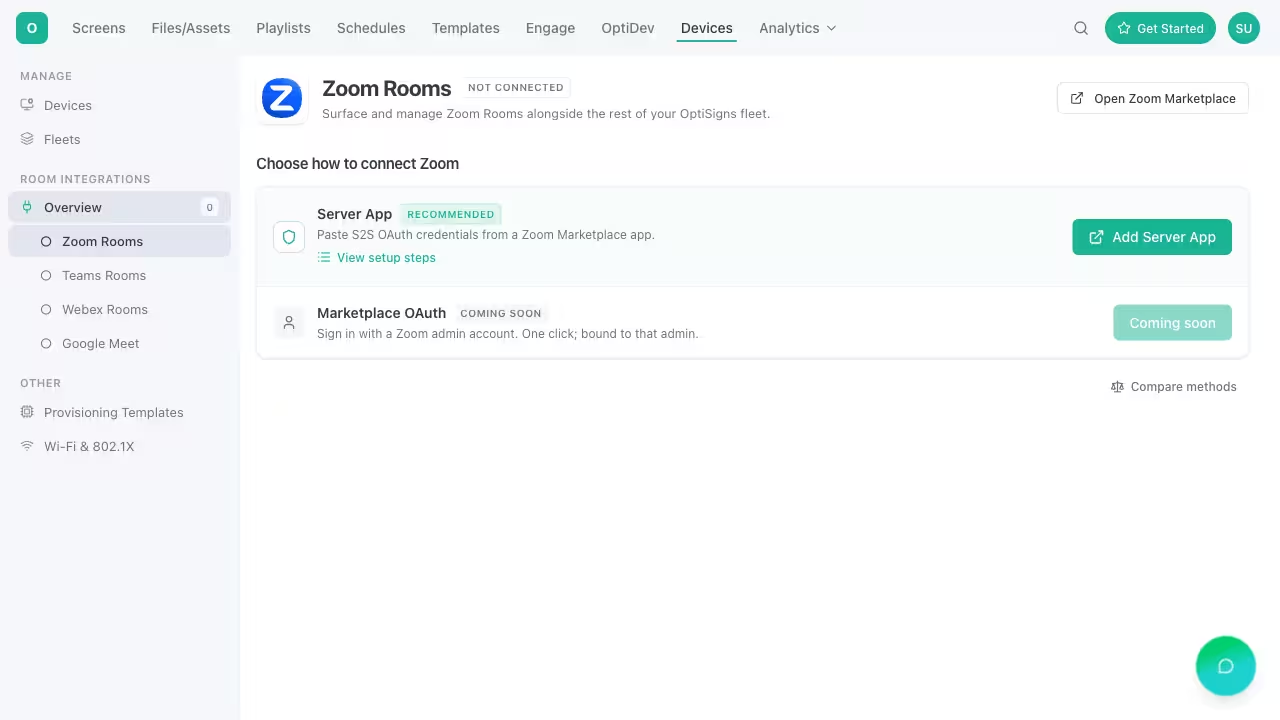
For Zoom, you create a Server-to-Server OAuth app (a Zoom "Server App") in your account and share its Account ID, Client ID, and Client Secret. No interactive login is required for the connection to keep working — the credential is yours and server-side. (A one-click Marketplace OAuth option, the ability to sign in with a Zoom admin account, is on the way.)
Cisco Webex: Webex Service App
Webex uses a Service App, an org-scoped integration that a Webex organization administrator approves. Once approved, OptiSigns can enumerate and manage the rooms in that org under the permissions you granted.
Google Meet: Service Account + Domain-Wide Delegation
Google Meet rooms connect through a Google Service Account with Domain-Wide Delegation, configured in your Google Admin console. You authorize the service account to act within your domain, scoped to exactly what the integration needs.
If your IT team has ever registered an Entra app, created a Zoom server app, approved a Webex integration, or delegated a Google service account, none of this is new work: it's the playbook they already know.
Step 2: Rooms sync automatically
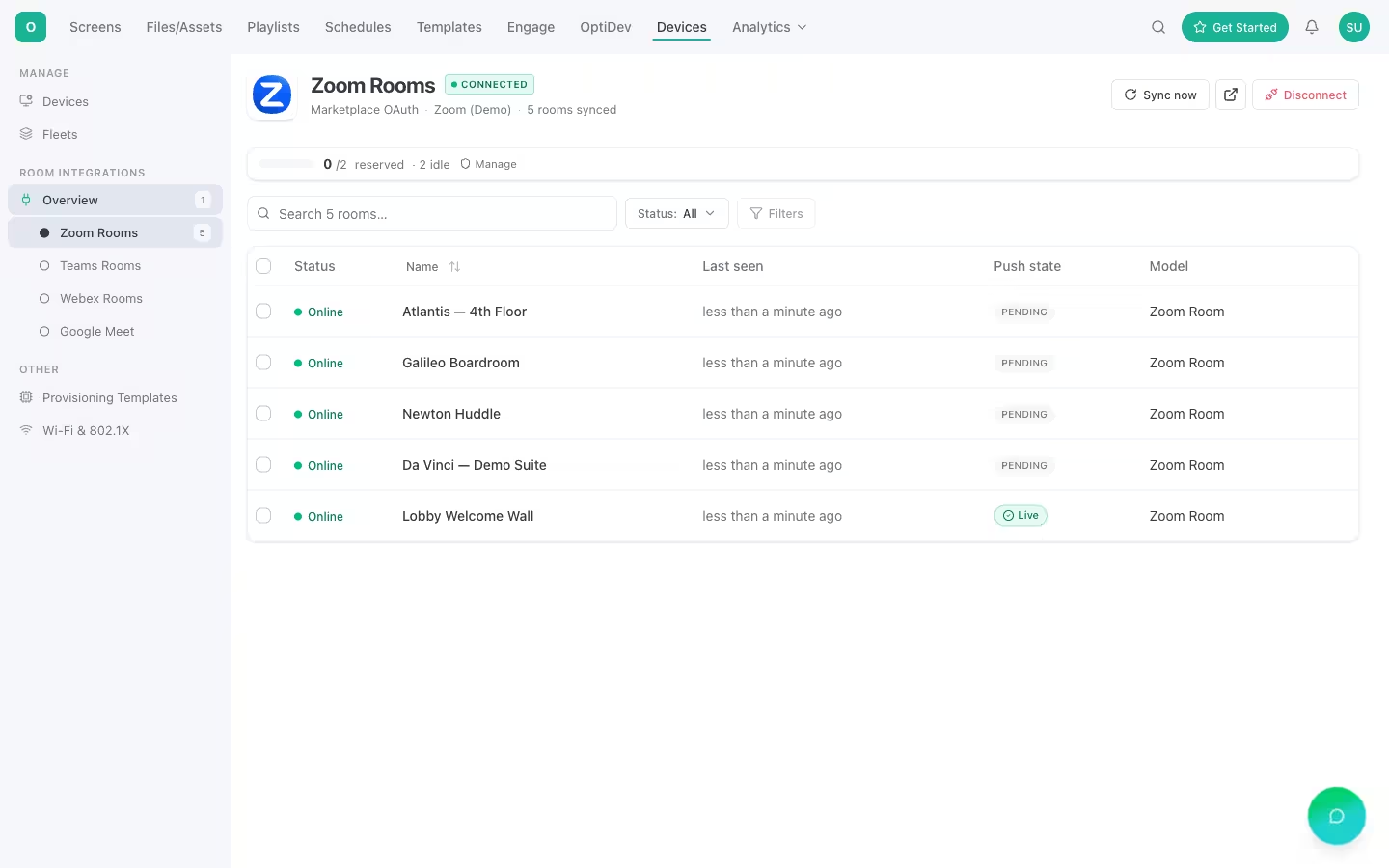
Once a platform is connected, OptiSigns enumerates its rooms for you. The first sync runs on connection, a background job keeps the list current, and you can trigger an on-demand sync any time. Each room appears alongside every other screen you manage — players, displays, and now meeting rooms — in one device list.
Step 3: Review synced rooms before anything goes live
Connecting and syncing don't turn anything on. Synced rooms land in your list in an un-activated state: visible, organized, and ready, but not yet showing signage and not yet costing a license. You decide which rooms to activate and when. Nothing is pushed to a display until you say so.
How licensing works: you pay only for rooms you turn on
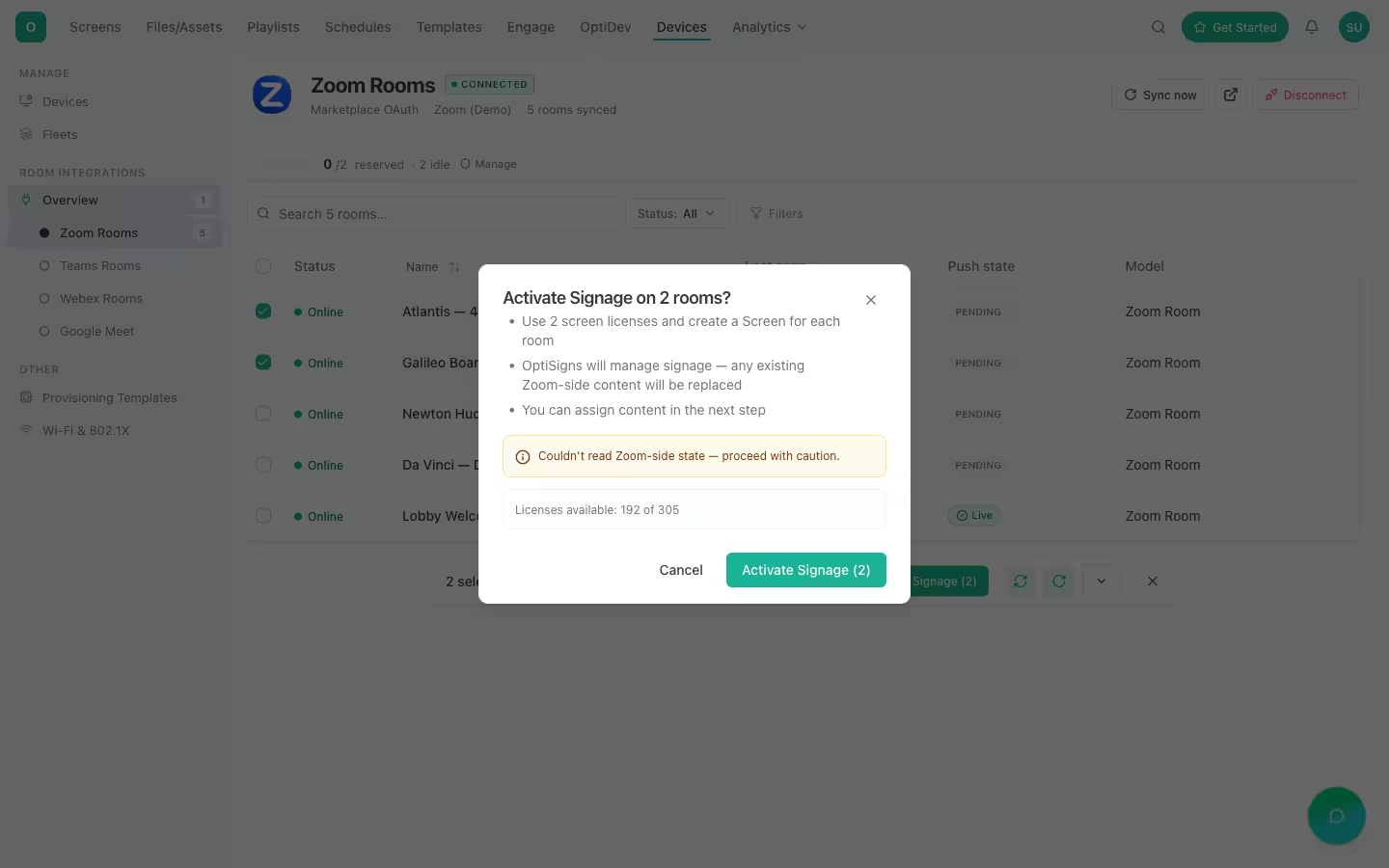
Here's the rule that matters for budgeting: a signage license is consumed only when you activate signage on a room. Connecting a platform is free. Syncing rooms is free. A synced room sitting in your list is free. The license meter counts activated rooms — not connections, not synced rooms, not signage URLs.
EventLicense consumed?Connect a platformNoSync roomsNoSynced room sitting in the listNoActivate signage on a roomYes
That means you can connect every platform, pull in your entire room estate, and look at the whole picture before spending a cent of signage budget.
Step 4: Activate rooms and assign content
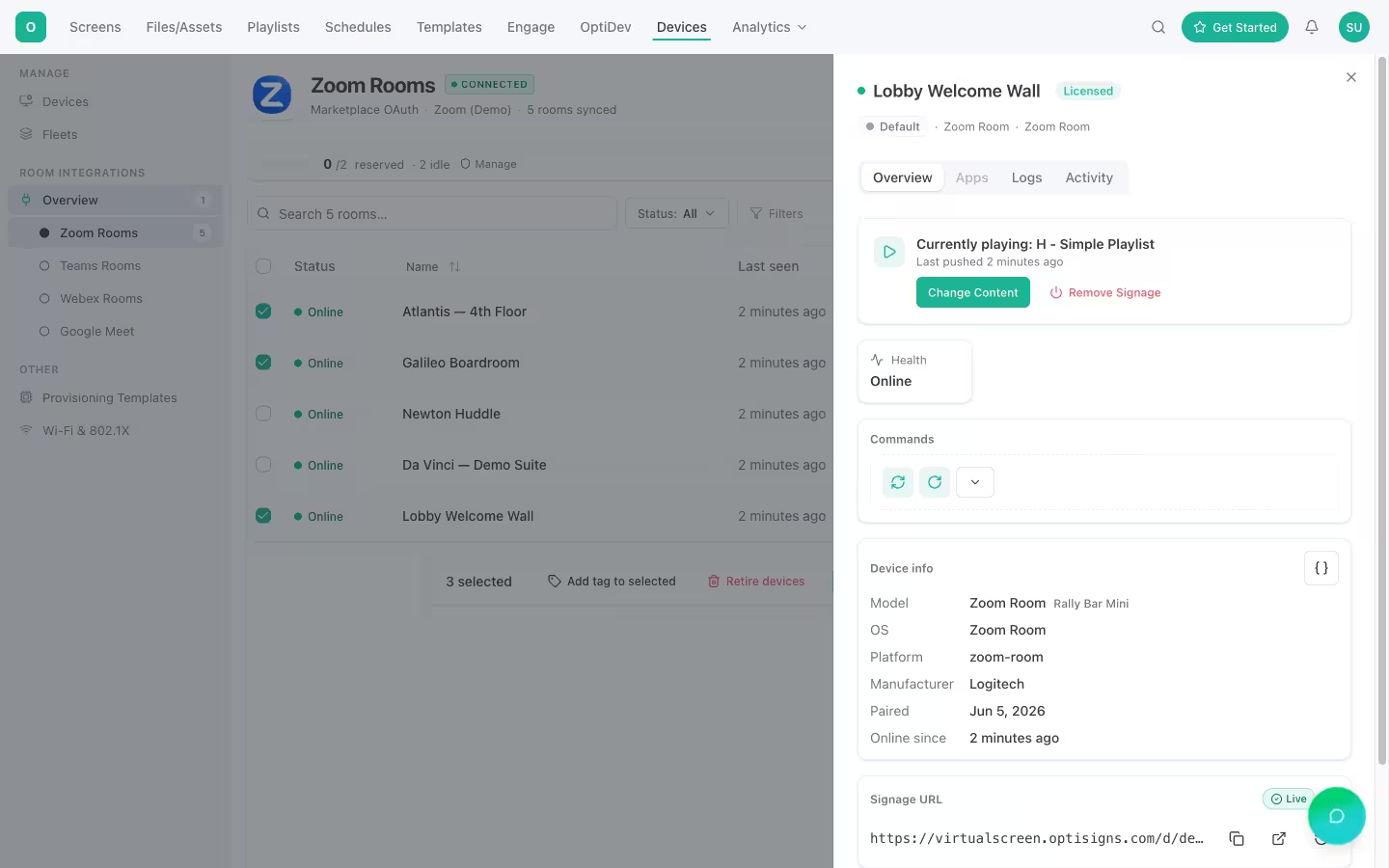
When you're ready, select the rooms to turn on and activate them. Then assign what they'll show: playlists, schedules, and any of 100+ apps — Power BI and Tableau dashboards, Google Slides, announcements, calendars, and more.
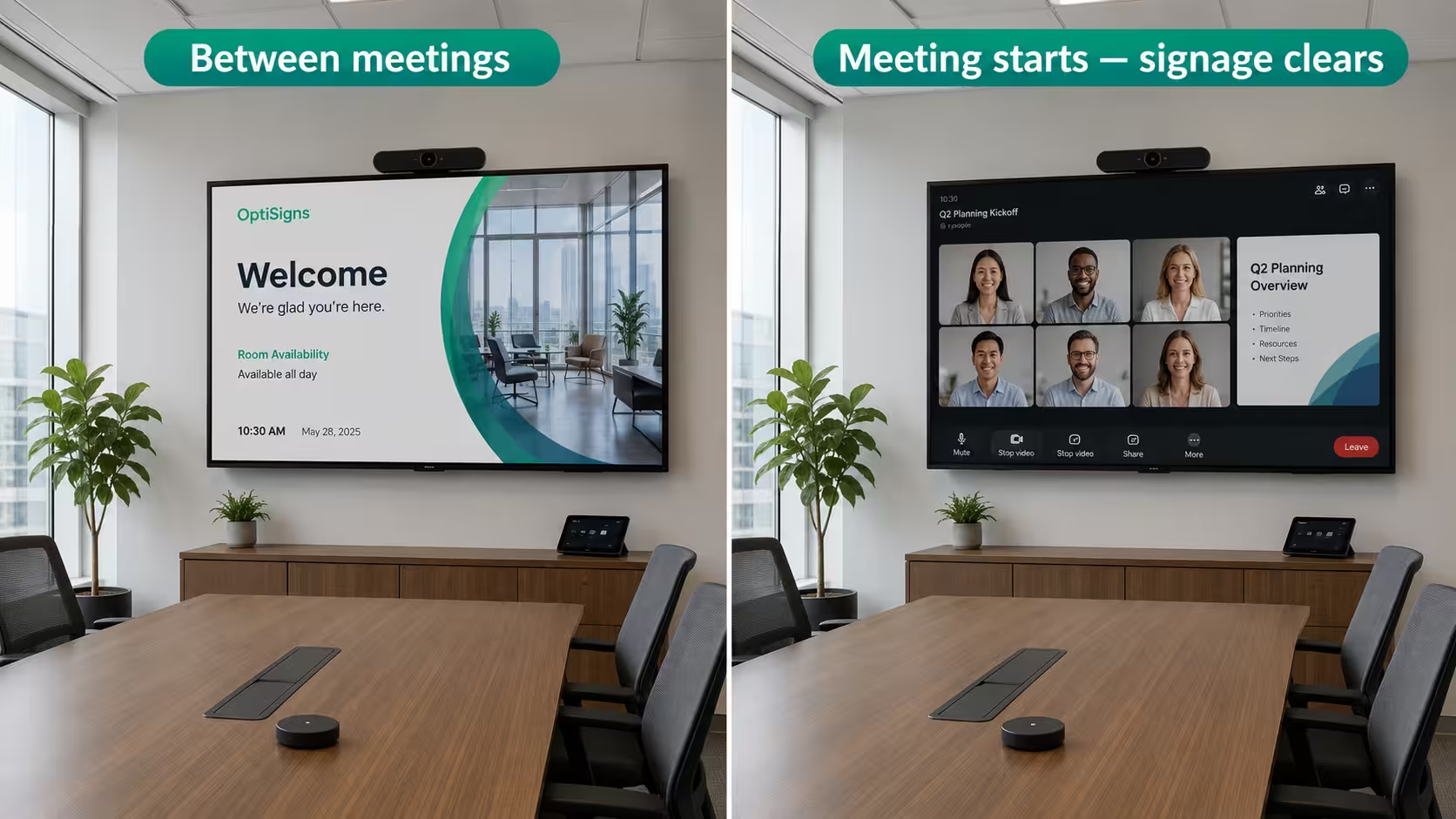
The signage plays while the room is idle and clears the moment a meeting starts, so the screen is always doing the right job: useful content between meetings, and the meeting itself when people walk in.
Security and scale
Unified Device Management is built to clear an IT security review:
- Standard enterprise auth. Every connection uses the vendor's own trusted-app mechanism. This could be Service Principal, Server-to-Server OAuth, Service App, Service Account + Domain-Wide Delegation. Credentials live in your tenant and you can revoke them.
- Encrypted at rest. Connection tokens are stored with AES-256-GCM encryption; setup state is signed.
- Nothing on the device. No agent or app touches the room hardware.
- Multi-tenant isolation. Your rooms, content, and tokens are scoped to your account.
- Built for fleets. Group rooms into Fleets to check health, change settings, or restart at scale. One workflow across all four vendors.
Frequently asked questions
Does OptiSigns install software on the room device?
No. Unified Device Management connects to your room platforms in the cloud, through each vendor's standard integration method. Nothing is installed, sideloaded, or changed on the Teams, Zoom, Webex, or Google Meet device itself, so there's no agent to deploy, patch, or maintain on the hardware.
Do I pay to connect or sync rooms?
No. Connecting a platform and syncing its rooms are free, and synced rooms sit in your device list at no cost. A signage license is consumed only when you activate signage on a specific room, so you can review your entire room estate before spending anything.
Which room platforms are supported?
Microsoft Teams Rooms, Zoom Rooms, Cisco Webex, and Google Meet are all live today. You can connect any mix of them and manage every room from one list, so you don't need to standardize your offices on a single vendor.
What happens to the signage when a meeting starts?
It clears immediately. Signage plays only while the room is idle and yields to the meeting the moment one begins, so the display always shows the right thing. Display content between meetings, and the call when people are in the room.
What permissions does each platform need?
Teams uses a Service Principal in your Entra tenant; Zoom uses a Server-to-Server OAuth app; Webex uses an org-approved Service App; Google Meet uses a Service Account with Domain-Wide Delegation. Each grants scoped access you control and can revoke at any time.
Can I manage all four platforms from one console?
Yes. Every synced room joins the same device list as your other screens, so you check health, change settings, restart devices, and group rooms into Fleets in one place instead of juggling four separate vendor portals.
See it in your own rooms
You can connect a platform, sync your rooms, and look at the full list before activating anything, so there's no cost to seeing exactly how this works in your environment.
Ready to take the next step? Try OptiSigns for free and see how easy it is to manage your devices today.


