


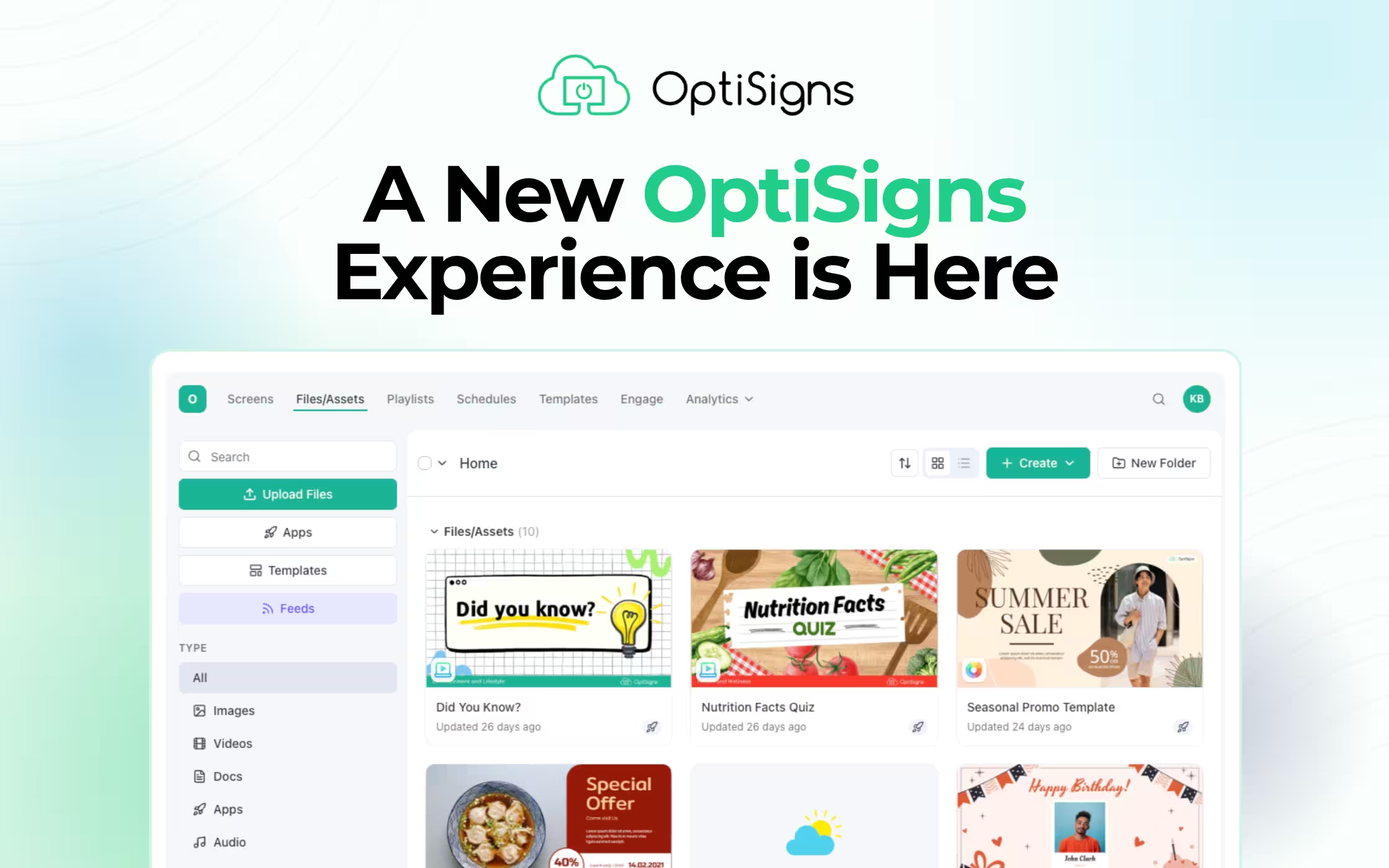
If you've logged in recently and thought, "wait, this looks different," you're still in the right place! We've rebuilt the OptiSigns portal from the ground up to bring you new AI features and performance improvements faster.
First thing’s first: None of your existing screens, assets, playlists, or settings will be affected by these changes. This update is a result of your feedback and is purely about making the portal itself better to use.
From the bottom of our hearts, thank you for helping OptiSigns improve. We are always open to hearing your thoughts on this new direction.
Keep reading to see what’s changed.
Note: This new portal will officially replace the classic OptiSigns portal later this year, becoming the one and only OptiSigns experience. We'd love for you to start exploring it now so you can get comfortable before the full switchover. To try it out, just click the "Try New Interface" button in the nav bar of your current portal.
Refreshed Design System
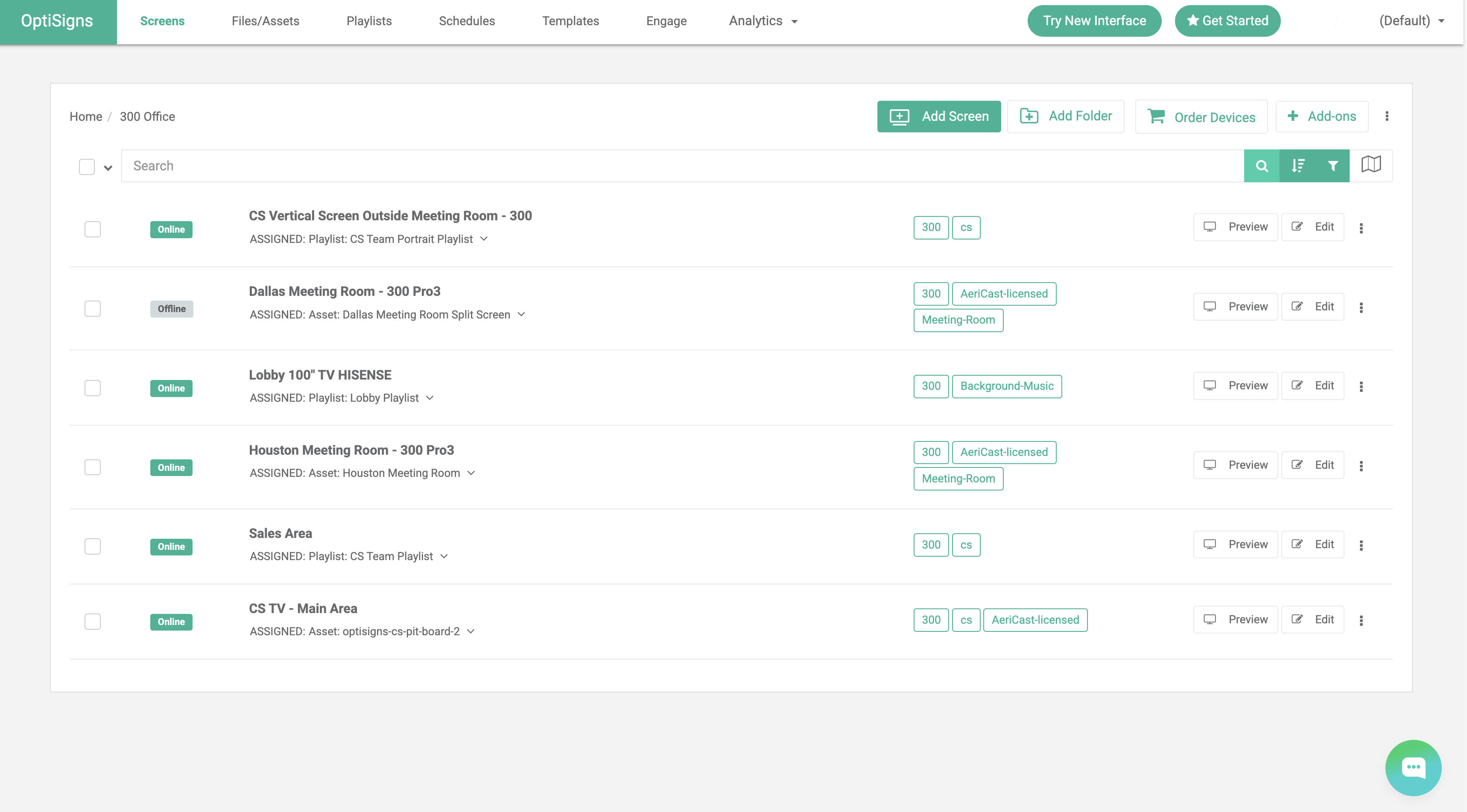
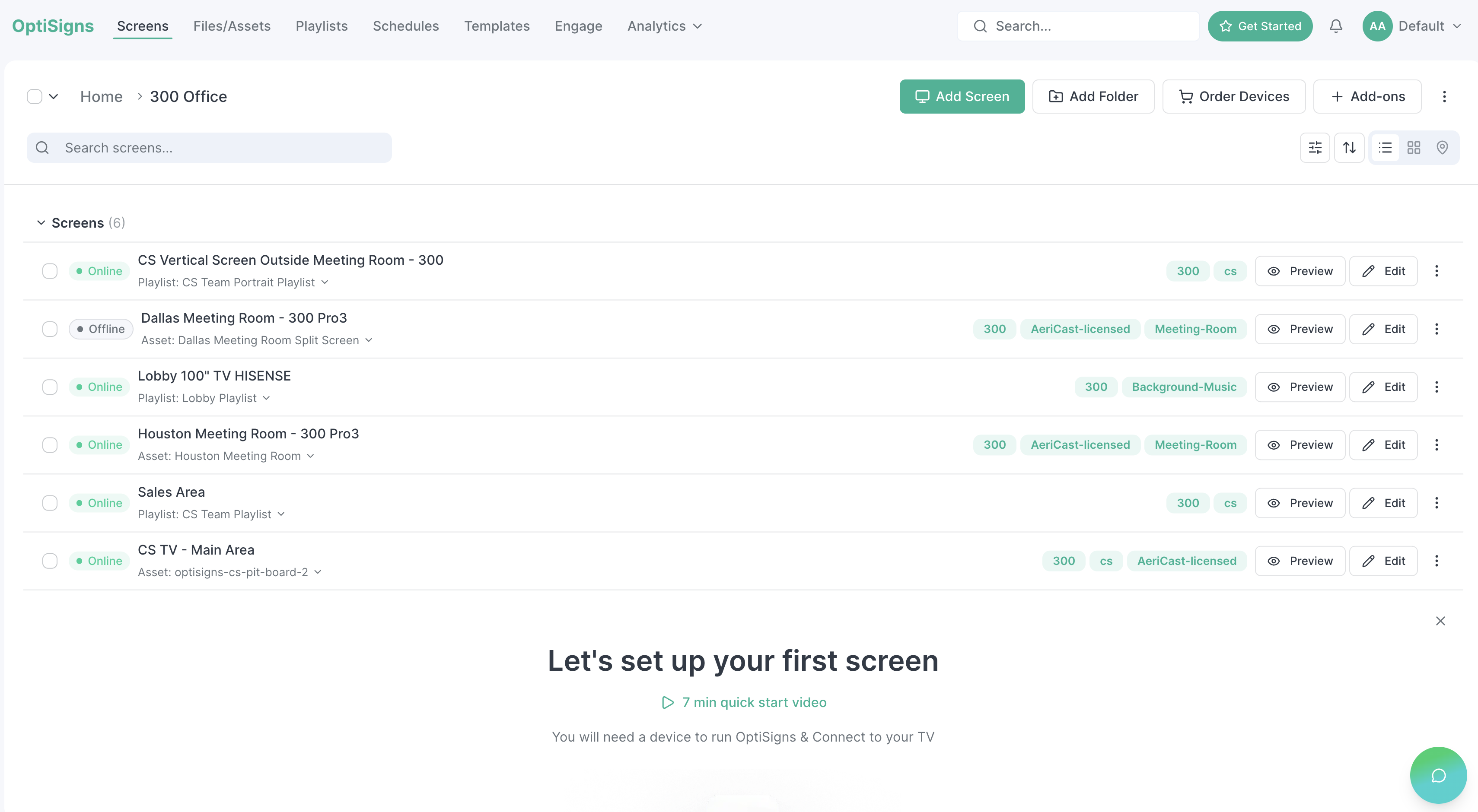
The OptiSigns portal has a more modern look and feel, with updates that make it easier to use overall. Buttons are clearer, icons are sharper, and folder views are more compact, making it much easier to scan through your content and playlists. Plus, we’ve enhanced filtering which means you can find what you need instantly.
| Before | After |
|---|---|
|
|
Light and Dark Mode
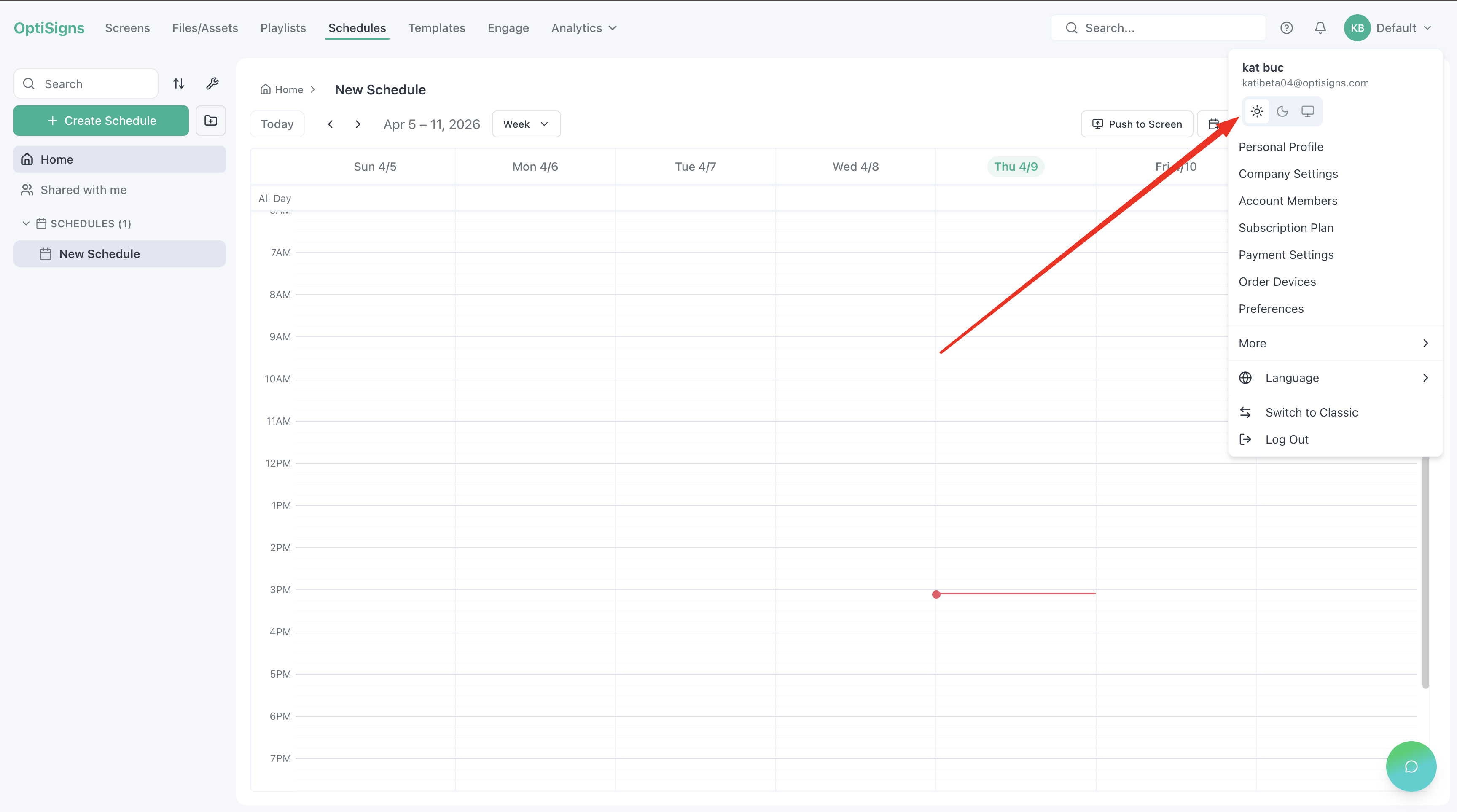
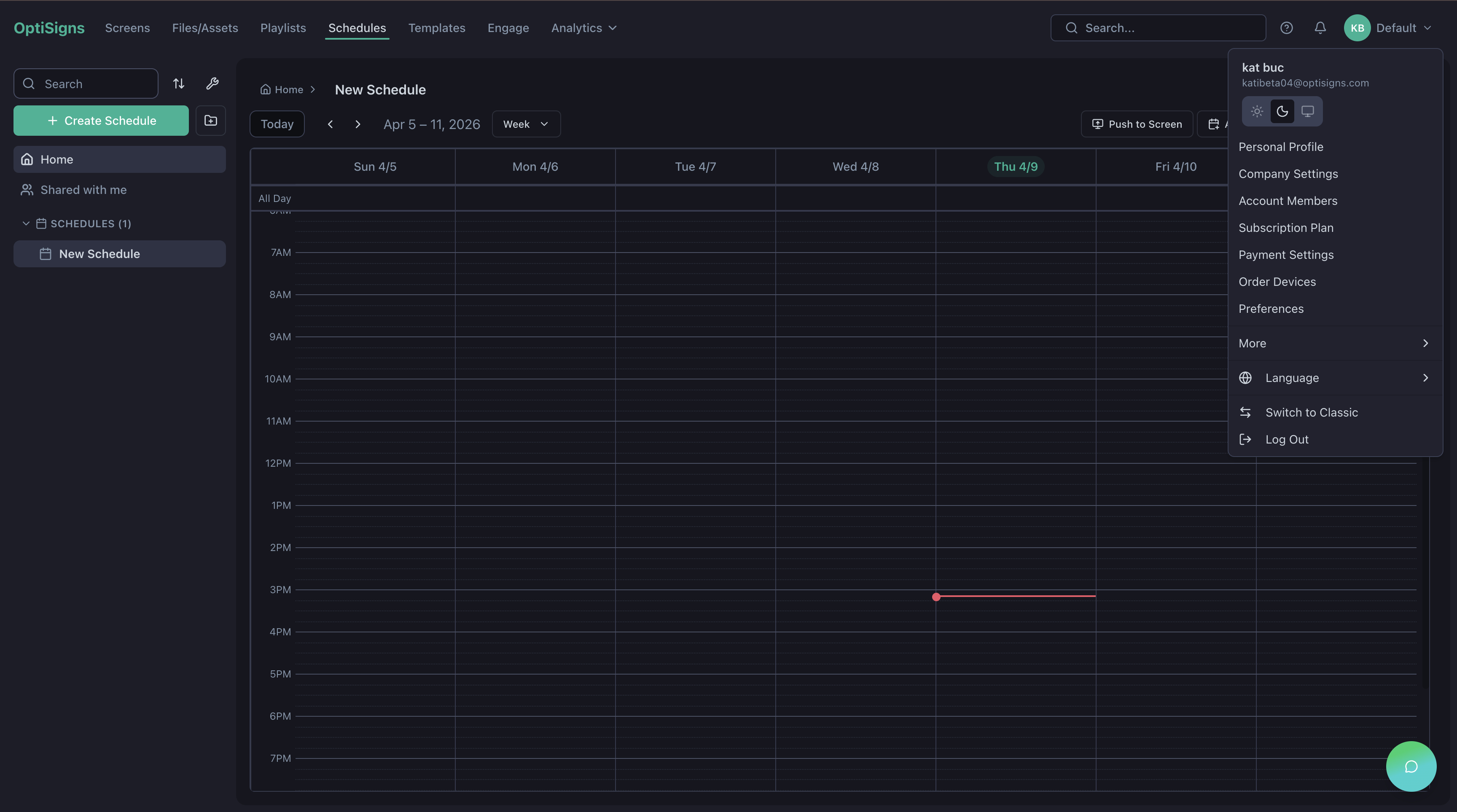
You can now switch the entire portal between light and dark mode. If you've ever navigated the portal from a dim space, or just prefer dark mode, you’ll understand why this is a game changer. Find the toggle in your account settings and choose whichever mode feels right.
| Toggle on/off in your account settings drop down menu | |
|---|---|
|
|
Global Search
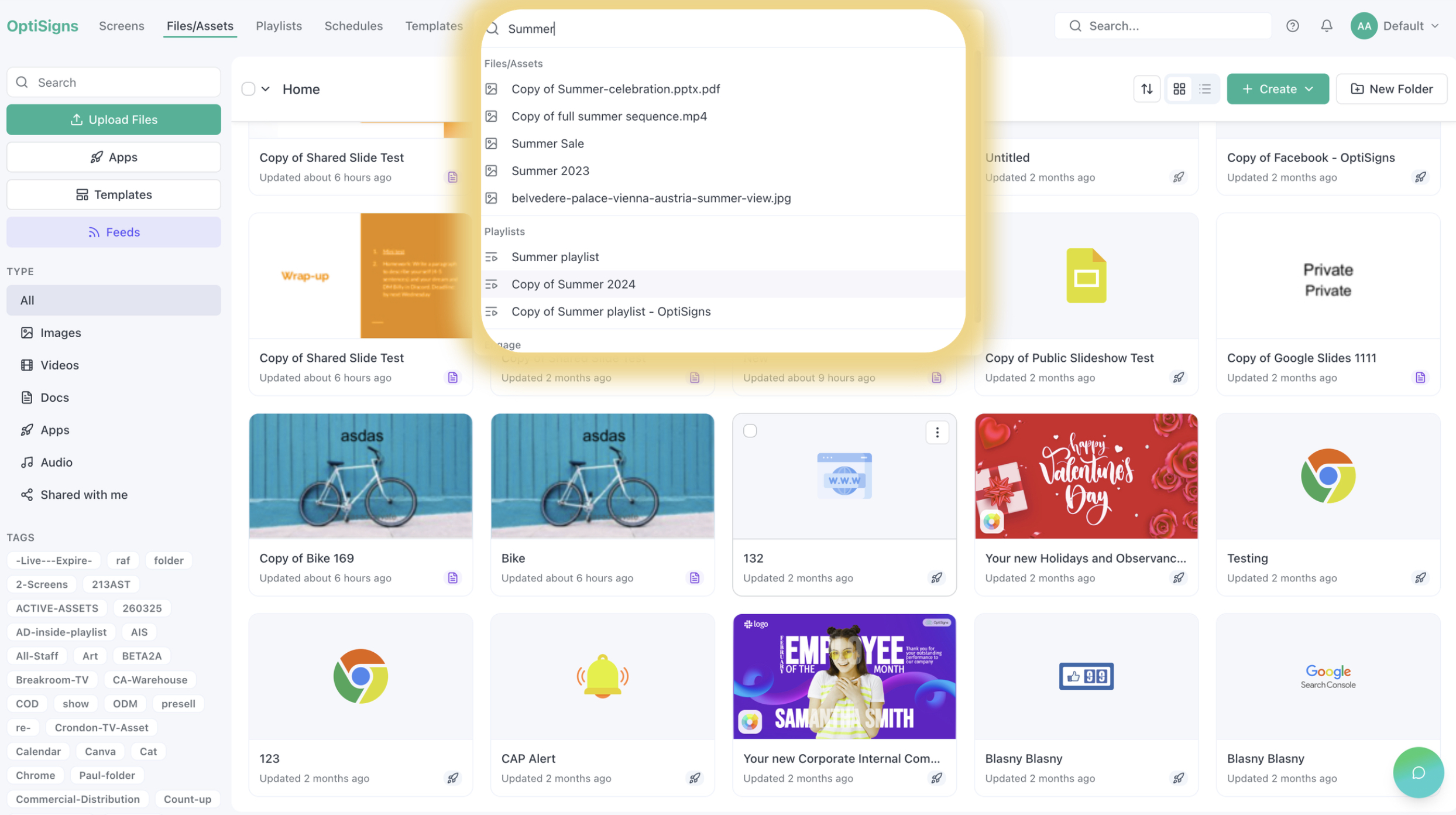
If you're managing a large screen deployment, you’ll be excited about this one! Instead of scrolling (or using cmd + F) to find what you’re looking for, you can now search for your specific files/assets, screens, playlists, schedules, feeds and more from anywhere in the portal!
|
New and Improved OptiBot
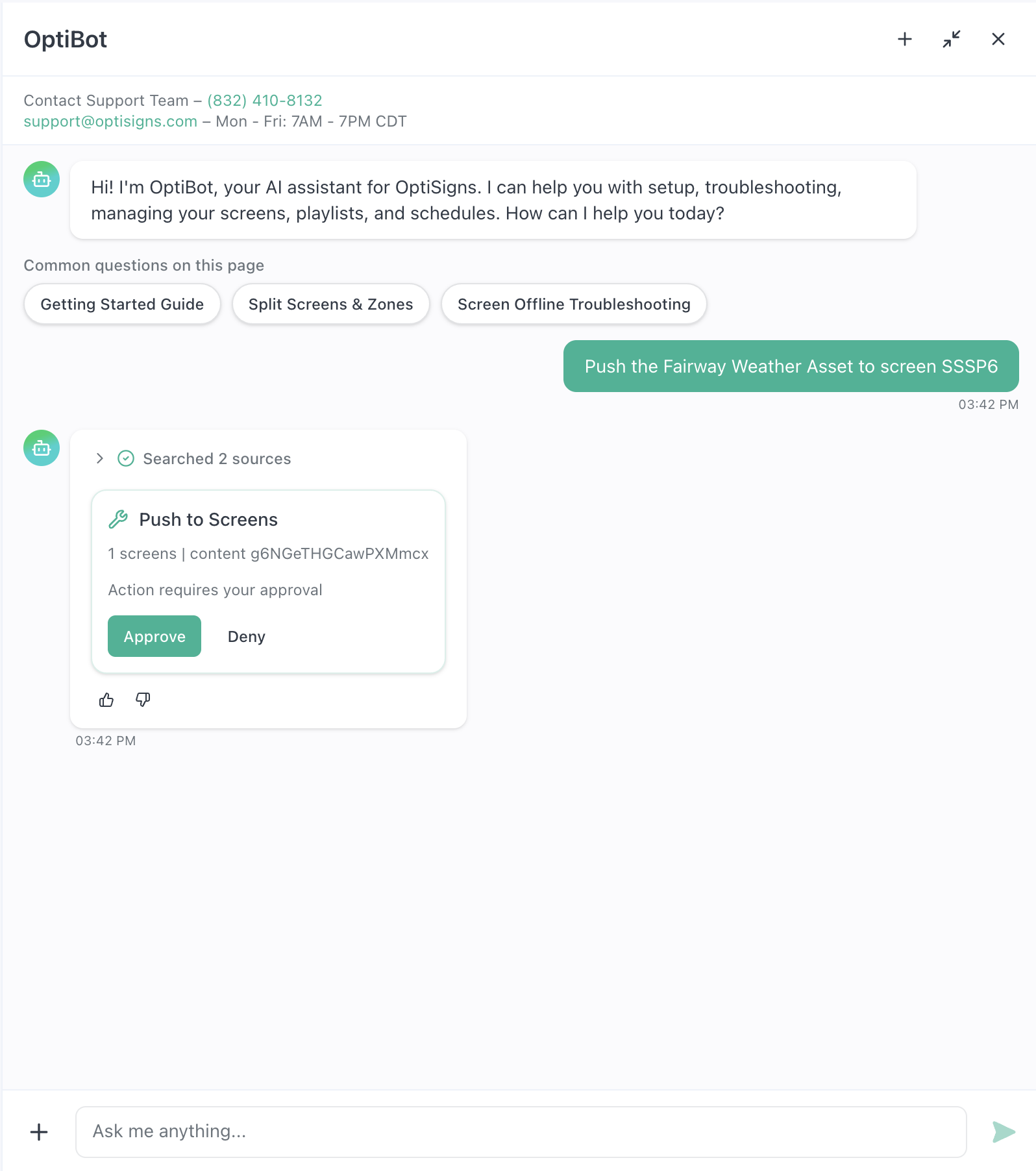
OptiBot is now faster, smarter, and even more action-oriented. Need to upload files, assign content to a screen, or manage asset live and expire dates? OptiBot can handle it all directly inside the portal. When it comes to troubleshooting, OptiBot will understand your screen setup, identify possible issues, and guide you through the resolution process step by step.
|
Device List Export
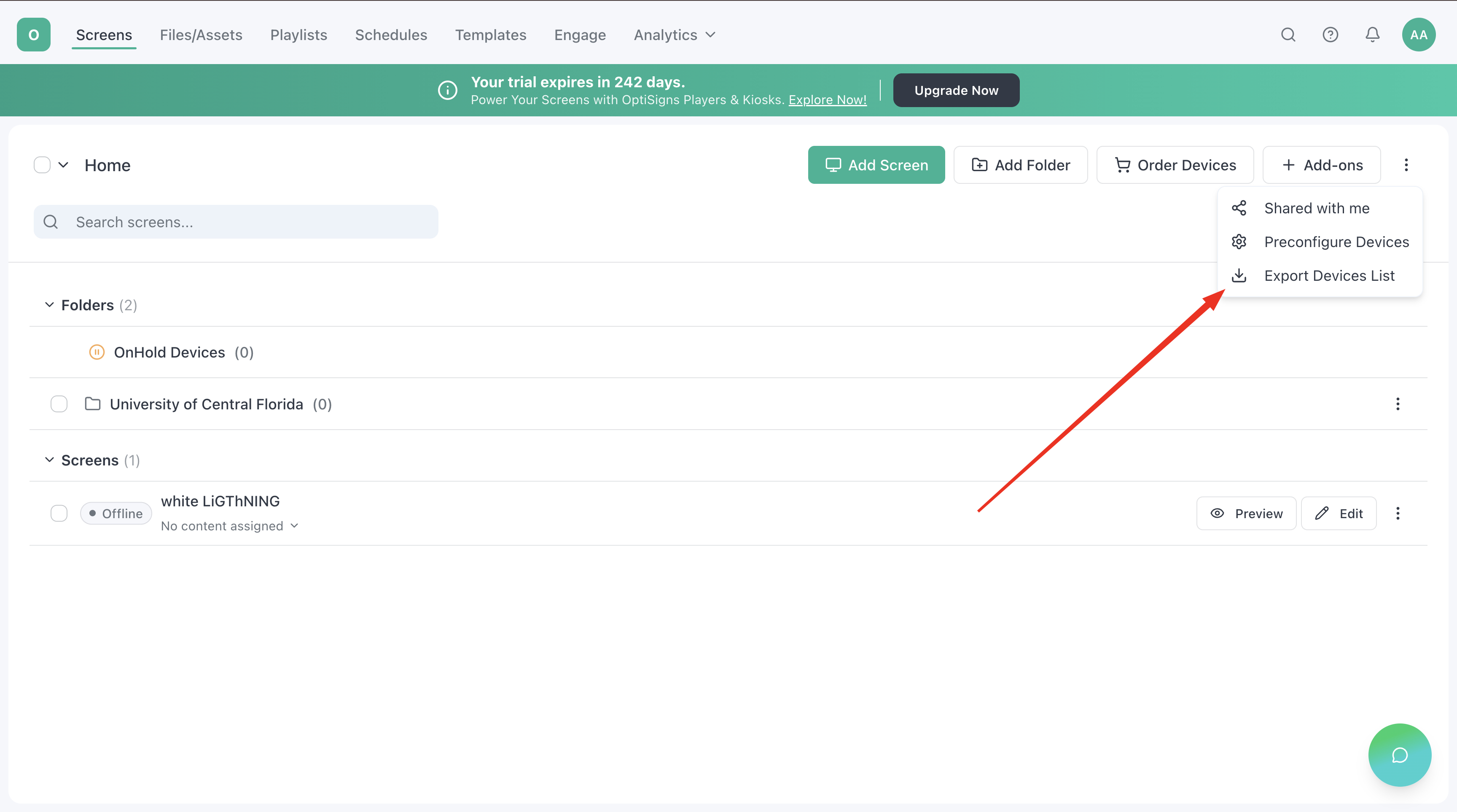
One of the top-requested features is finally here! Now you can export your full device list directly from the Screens page. If you need to pull device inventory for an audit, share a list with the IT team, or get a quick count by location, it's now just a few clicks.
|
Simply navigate to the Screens page, select the 3 dots to the right of the Add-ons button, and select “Export Devices List.”
Japanese Language Support
We’ve also added support for Japanese in the portal. If that’s your preferred language, enable it anytime in your account settings.
Faster Load Times
Beyond everything you can see, we've also made significant performance improvements under the hood! Pages load faster, transitions feel smoother, and the overall experience is more responsive.
A Stronger Foundation for What’s Ahead
Simply put, the new OptiSigns experience is all about making the platform easier to navigate, more consistent to use, and better prepared for future improvements. All without disrupting the content and workflows you already rely on.
We’re excited for you to experience the new platform, and if you need help navigating these changes, we're here to help.
Thank you for being part of the OptiSigns community.


