


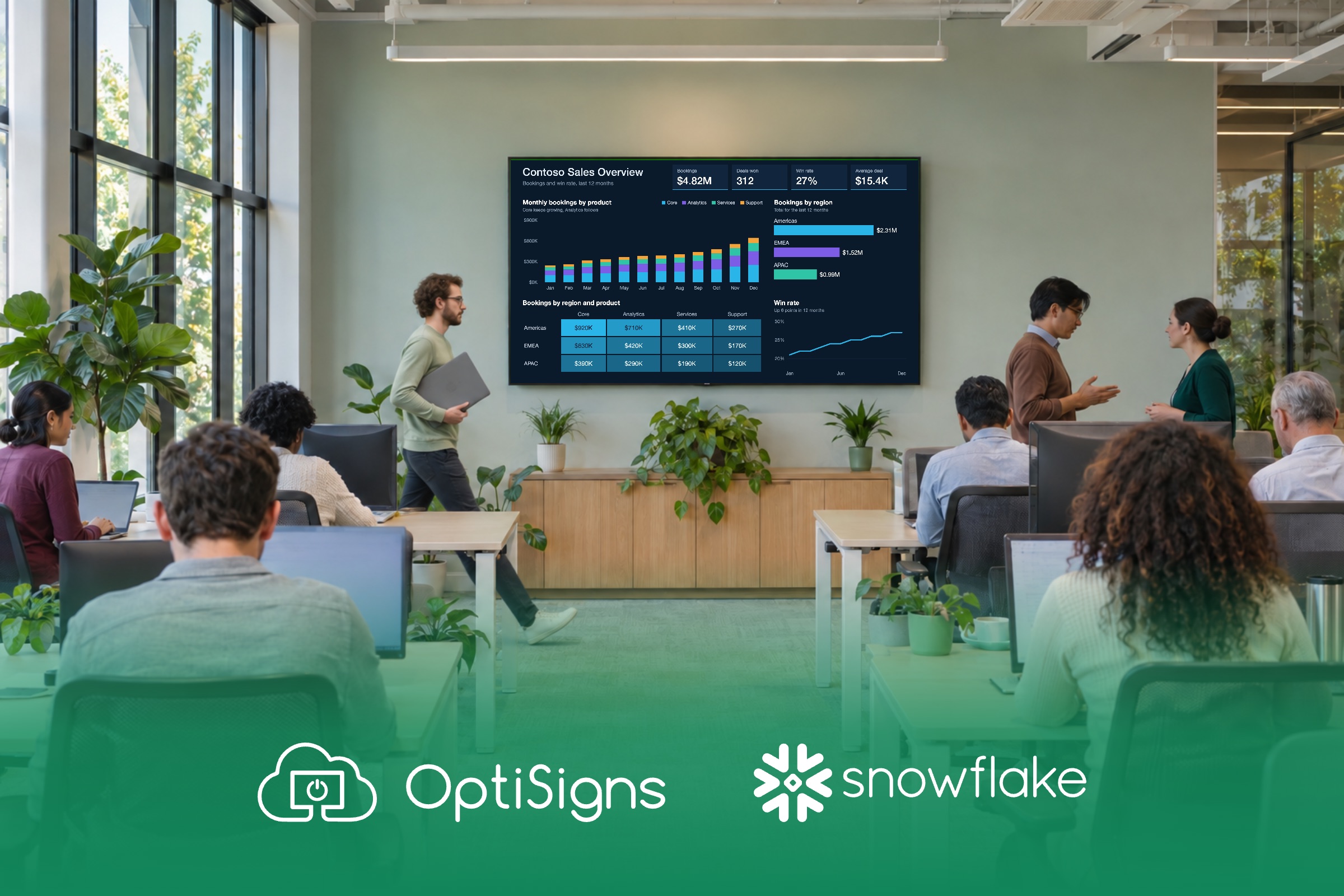
With OptiSigns, you paste your Snowflake dashboard's link once, and your office TV shows it full screen. The screen signs itself in, authenticator code included, and reloads on its own. No laptop at the TV, no Snowflake login for each person in the room.
Why put Snowflake dashboards on a TV?
Build it once in Snowflake. Let the whole room see it.
Your Snowflake numbers only help the people who see them. Today, that means whoever signs in and pulls them up. The gap is everyone else.
- The work is already done. Your team has built the queries, the models and the dashboards. A screen puts them in front of people who would never go looking.
- Most of it goes unseen. The sales floor, the ops room and the front desk don't open Snowsight between calls, so the dashboard you built stays out of sight.
- Everyone sees the same numbers. One current view on the wall means a missed target gets noticed the same morning, not at the end of the month.
A TV closes that gap. It turns a dashboard a few people sign in to into a scoreboard the whole office sees all day. If your team uses other dashboard tools too, here's how to display any dashboard on a TV.
Why is it so hard to keep Snowflake on a TV?
Snowflake is built for one signed-in person at a desk, and the usual workarounds break on a shared screen that runs all day:
- Every screen starts over. Each TV needs its own computer and its own Snowflake sign-in, because sharing a dashboard link doesn't grant access.1 Adding a screen means doing it all again.
- IT can't approve it. A personal password left on a shared TV rarely gets past a security review. And Snowflake now requires a second factor for password sign-ins to Snowsight,2 so the TV stops at a code prompt nobody is there to answer.
- Built for desks, not walls. Snowsight signs you out after 18 hours idle by default.3 Snowflake dashboards don't refresh on their own either,4 so the wall shows a sign-in page or old numbers until someone walks over.
How OptiSigns solves each of these problems
Set it up once in the portal. The screen handles the sign-in after that.
The usual way
With OptiSigns
The usual way
Every screen starts over
With OptiSigns
01
Set up once, show everywhere
You paste your Snowflake dashboard's link into OptiSigns once, and every screen you send it to shows it full screen, with no laptop at the TV.
The usual way
IT can't approve it
With OptiSigns
02
Secure sign-in, built in
The screen signs in with its own Snowflake login, kept encrypted.
The usual way
Built for desks, not walls
With OptiSigns
03
Centrally managed, built for the TV
Manage every screen from one portal, and the wall reloads on its own.
1. Set up once, show everywhere
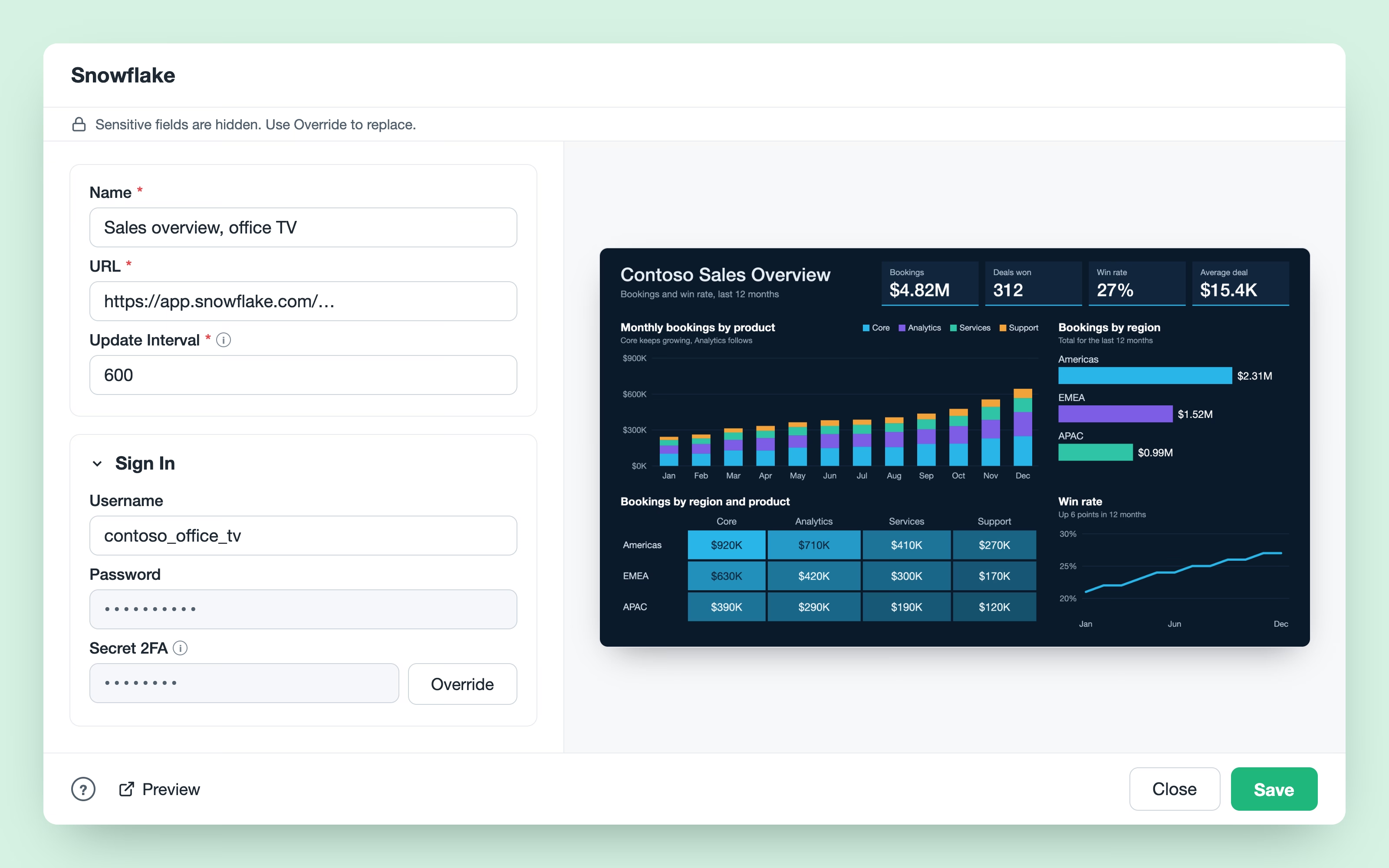
You paste your Snowflake dashboard's link into OptiSigns once, and every screen you send it to shows it full screen, with no laptop at the TV. It works with pages on app.snowflake.com that use Snowflake sign-in, and the Help Center guide covers the setup. If your Snowflake data feeds Power BI reports, here's how to show a Power BI report on a TV.
2. Secure sign-in, built in
The screen signs in with its own Snowflake login, kept encrypted.
- The screen's own login. Save a Snowflake username and password once, and the screen signs itself in. Give that user a read-only role, so the screen sees only what the role allows. It's a regular Snowflake user, since service users can't log in with a password.5
- Encrypted, with Master Password. OptiSigns stores the password and 2FA key encrypted. With Master Password on, OptiSigns doesn't keep the key that unlocks them.
- MFA codes, handled. When Snowflake asks for an authenticator-app code, the screen makes a fresh six-digit code from your 2FA secret key and fills it in.
The one thing to know. Only a password with an optional authenticator-app code can be automated. Duo push, passkeys, SMS codes and SSO-only users can't, so give the screen its own user with a password and an authenticator app. Samsung, LG webOS and Apple TV screens use Secured Dashboard instead (below).
3. Centrally managed, built for the TV
Manage every screen from one portal, the same way you run dashboards on office screens with OptiSigns, and the wall reloads on its own.
- Every screen, one portal. Send it to one screen, or mix it into playlists, schedules and split screens with your other content. For a login with an authenticator code, assign it to the screen directly.
- Made for the wall. You set how often the page reloads. If Snowflake has signed the screen out, it signs back in on the next reload.
- What reloads cost. A reload can start your warehouse, which Snowflake bills per second with a 60-second minimum.6 Ten screens on a 10-minute interval load it 60 times an hour, so match the interval to how often your numbers change.
When should you use Secured Dashboard instead?
Some screens can't run the sign-in.
Secured Dashboard signs in on an OptiSigns server, including logins with MFA codes, and sends the screen a picture of the page, refreshed every 4 to 24 hours.
- Samsung, LG and Apple TV. On Samsung, LG webOS and Apple TV screens, use Secured Dashboard: the sign-in happens on the server, not on the TV.
- Many screens, one code. For logins with a code, the sign-in happens on the server, not on each screen, so screens don't race each other for a one-time code.
Running Databricks as well? Here's how to display Databricks dashboards on a TV.
SNOWFLAKE + OPTISIGNS
Turn your Snowflake dashboard into a scoreboard the whole office sees
Paste your dashboard's link once and put it on every office TV. No laptop at the TV, no login for every viewer.


