


Microsoft Power BI has become one of the most widely used platforms for business dashboards and reporting. But those dashboards don’t have to stay on a laptop or in a browser tab. Displaying Power BI dashboards on TVs can keep important business and operational information visible throughout the day.
There are three ways to display a Power BI dashboard on a TV: connect a laptop with HDMI, cast from a browser, or use digital signage software. HDMI and casting work well for temporary use. If you need your dashboard to stay current and visible throughout the day, digital signage is the better fit.
Need to keep a Power BI dashboard running on a TV? OptiSigns gives you a managed way to keep dashboards updated and control your screens remotely.
How to Display Power BI on a TV
Despite the myriad of reasons you might want to push Power BI data to a screen, there currently is no native way to push or cast your dashboards to a screen. We need to get creative.
The best method depends on whether you're showing Power BI temporarily or need the dashboard to stay visible day to day. Here's how each option works.
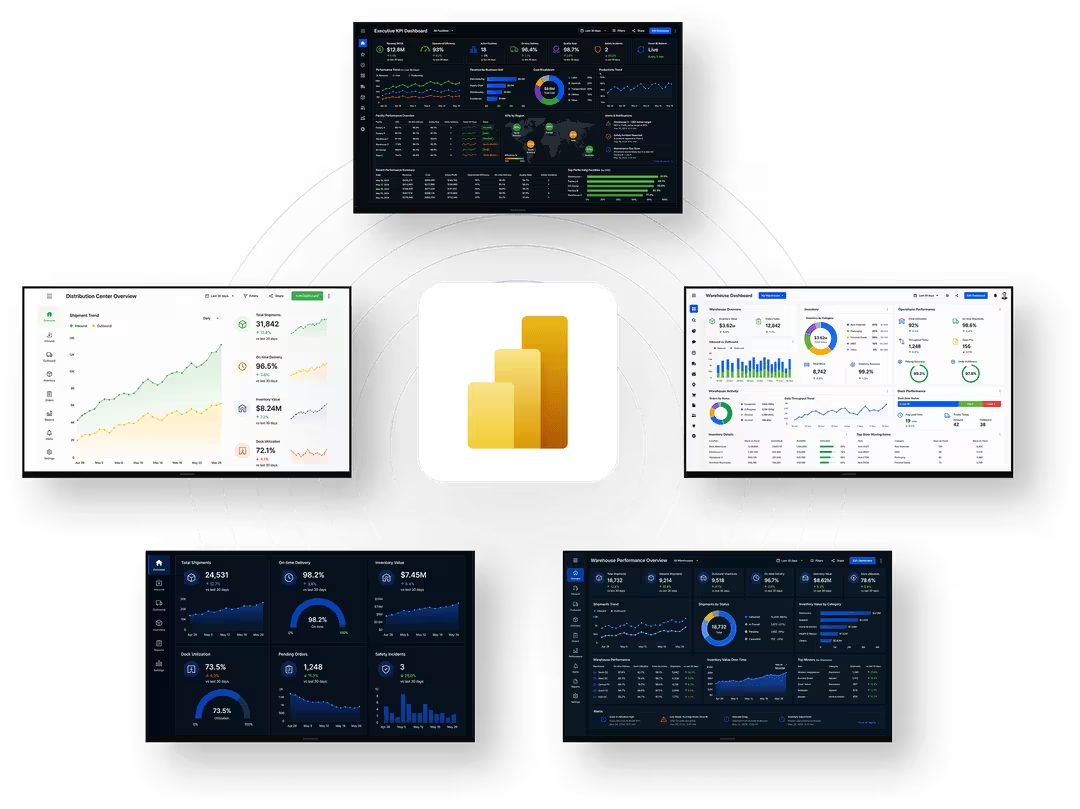
Via Direct Connect and Web Browser
Laptop to HDMI cable to TV. The simplest possible approach.
This works great for meeting presentations and one-off walkthroughs. Someone pulls up Power BI on their laptop, mirrors the display to the conference room TV, and walks through the data live.
However for always-on displays, it falls apart fast. You're tying up someone's laptop. The laptop will sleep. You can only show one dashboard (no rotation). And if the person takes their laptop to a meeting, the TV goes dark.
If you're looking into permanent screen setups, consider turning your TV into a digital sign instead of relying on cables.
Finally, you’ll need some way to refresh the report. This is fairly simple and can be done using a tab refresh extension for your browser. If you’re running the desktop version of Power BI, you’ll have to hit “Publish” from the top menu to get it on a web browser for auto-refresh.

Via Chrome Browser
If your TV is connected to a network, it’s possible to cast a laptop screen to it. On your Chrome browser, click the 3 Dots in the upper right corner → Save and share → Cast…
A list of devices will pop up. Choose your device, and you’re off to the races.
Again, this has issues: while it doesn’t require a laptop to be directly connected to a screen, it requires processing power from the computer, and a stable network connection. It also means the laptop’s Chrome browser can’t be used for anything other than casting your Power BI dashboard. You’ll still need an auto-refresher extension, and you’ll still have to manually manage your reports and screens to some degree.
While this might be a better option than a direct connection in many cases, it still doesn’t work that well as a long-term or permanent solution. And, just like a direct connection, you wouldn’t be able to automatically cycle through reports.
Via Digital Signage
Another option is to use digital signage software to turn the TV into a managed display. This is the better fit when the Power BI dashboard needs to stay on a screen throughout the day rather than being presented temporarily from someone's laptop.
OptiSigns digital signage software is a great option. It’s easy to set up and use, and you can try it with a free 14-day trial, no credit card required.
OptiSigns has a native Power BI app that integrates through an official Microsoft API. You simply create a Power BI asset in the OptiSigns portal, paste in the report URL, authenticate with Microsoft, choose an update interval, and assign the asset to a screen.
Power BI displays cleanly with OptiSigns, without browser bars, popups, or other distractions. Unlike solutions that rely on screenshots of Power BI webpages, OptiSigns uses a native Power BI integration, giving you a cleaner and more reliable way to display dashboards on a TV. This makes digital signage especially useful for permanent dashboard displays across offices, production floors, warehouses, and multiple locations—particularly when you don’t want to leave a dedicated laptop connected to every TV.
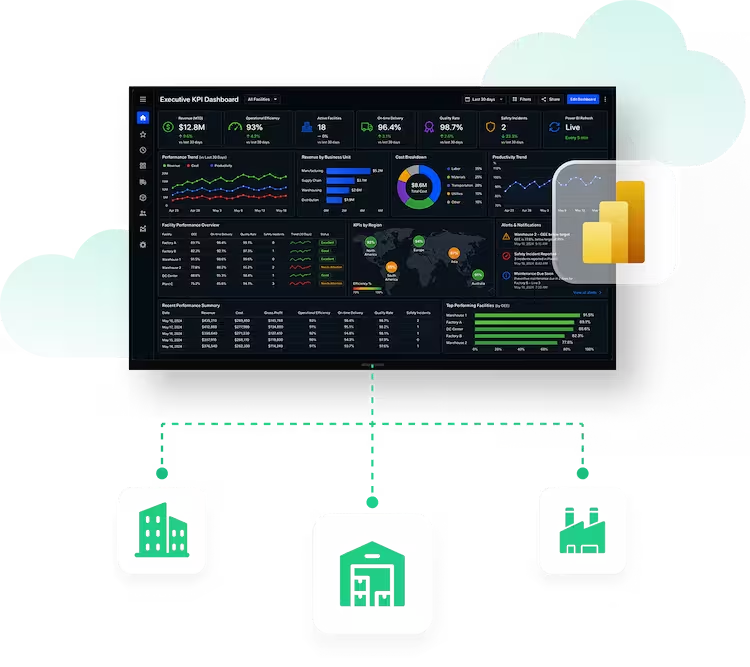
Using playlists, OptiSigns can rotate through multiple Power BI reports or mix dashboards with announcements and other business content.
Finally, all these assets can be scheduled to play only during business hours, or certain times of day. OptiSigns can fully automate your screen, making it turn off and on when needed. Since it auto-refreshes your reports as well, this makes OptiSigns a fully automated option. A no-brainer for saving time.
If your TV or screen can't run the OptiSigns app directly, you can connect a compatible OptiSigns player via HDMI. See our digital signage hardware options for current devices and pricing.
If you’re only looking to display a Power BI report for a few minutes to a few hours one time, it makes sense to go with the direct connect or casting option.
But for a dashboard that needs to stay on-screen every day, digital signage gives you far more control and automation without requiring a dedicated laptop or tablet for every display.
Which Method Should You Use?
| Feature | HDMI Cable + Laptop | Chromecast / Screen Cast | Digital Signage (OptiSigns) |
|---|---|---|---|
| Hardware Needed | Dedicated computer | Computer + casting device | Compatible screen or OptiSigns player |
| Auto-Refresh | Requires browser extension | Requires browser extension | Built-in, configurable interval |
| Multiple Dashboards | Manual tab switching | Manual tab switching | Auto-rotate via playlists |
| Unattended Operation | Prone to popups, updates, sleep | Drops if laptop disconnects | Runs 24/7 without intervention |
| Clean Display (No Browser UI) | No — address bar, tabs visible | No — still a browser window | Yes — native integration, no browser elements |
| Scheduling | Manual on/off | Manual on/off | Schedule by time of day, day of week |
| Best For | Quick one-time demo | Temporary meeting display | Permanent always-on dashboards |
Other Methods You'll See Online
Two other approaches come up frequently. Neither is ideal for permanent displays, but they're worth knowing about:
PowerPoint Embed — Power BI has a native add-in for PowerPoint. You embed a live dashboard into a slide deck, then loop the presentation on a screen. The dashboard updates while the deck is open. The problem: if the laptop sleeps, PowerPoint closes, or the network drops, the screen goes blank and someone has to restart it manually. This method generally works best in meetings. Build a deck with embedded Power BI visuals, present it in a conference room, and you get the polish of slides with the depth of live data. You can also display PowerPoint on digital signs if you want to combine slides with other content.
Publish to Web — Power BI lets you generate a public URL for any report. You open that URL on any screen with a browser — clean, borderless, no login required. The catch: "no login required" means anyone with the link can see your data. Only use this for non-sensitive, non-confidential dashboards. Microsoft explicitly warns against using Publish to Web for internal data. If you do use it, add ?chromeless=1 to the end of the URL. This removes Power BI's navigation chrome and gives you a clean, borderless view that looks much better on a TV.
Setting Up Power BI on a TV Screen with OptiSigns
For an in-depth guide, see how to set up your Power BI dashboard with OptiSigns. Here, we’ll cover the basics.
The OptiSigns Power BI app is available on Pro Plus plans and above. The 14-day OptiSigns free trial includes Pro Plus features, so you can test the Power BI integration during your trial. To get started, copy the report or dashboard URL from the browser address bar in Power BI and not the Report Share link. If you use Direct Login, you'll authenticate with Microsoft during setup.

Now, go to the OptiSigns app portal. Click Files/Assets → Apps:

A big list of Apps will appear. Among them, you’ll find the Power BI App. Click on it.

This screen will appear:

Configure your asset. Give it a name (e.g., "Sales Dashboard Q1") and paste the Power BI report URL. This is the URL you see when viewing the report in Power BI Service (app.powerbi.com).
Set the Update Interval. This controls how often OptiSigns checks for an update to the Power BI dashboard. The default is 600 seconds (10 minutes). Adjust based on how frequently your underlying data changes.
Authenticate with Power BI. With Direct Login, OptiSigns passes authentication through to Microsoft's Power BI service. Your Microsoft username and password are not stored in OptiSigns. Enterprise customers can also use a Microsoft Entra ID Service Principal for app-based authentication instead of relying on an individual user account.
Save and assign to your screen. Select which display (or displays) should show this dashboard.
(Optional) Add to a playlist. Want to rotate between your Power BI sales dashboard, a production metrics report, and a company announcement? Create a playlist, set the duration for each item, and OptiSigns handles the rotation automatically. You can even display dashboards on office screens from multiple data sources in the same playlist.
That's it. The screen will display your Power BI dashboard and keep it running without any browser management or session refreshing.
Once you’ve configured your Power BI asset, it can be assigned to a screen, or added to a playlist with other assets. This can be scheduled to play only during business hours, or certain hours of the day, saving power to your TV.
Get Started
Displaying Power BI on a TV doesn't have to be a maintenance headache. The right setup runs itself: dashboards stay live, data refreshes, and nobody has to walk across the office to type in a password.
If you're managing more than a screen or two, a digital signage platform saves real time and frustration. OptiSigns' native Power BI integration handles the hard parts (authentication, refresh, scheduling) so you can focus on the data, not the display infrastructure.
Power BI + OptiSigns
Put your Power BI dashboards where the work happens
Keep live Power BI reports visible where your teams work, from offices to production floors and warehouses. Native Power BI integration. No PC behind every TV. No walking the floor to log in.


