


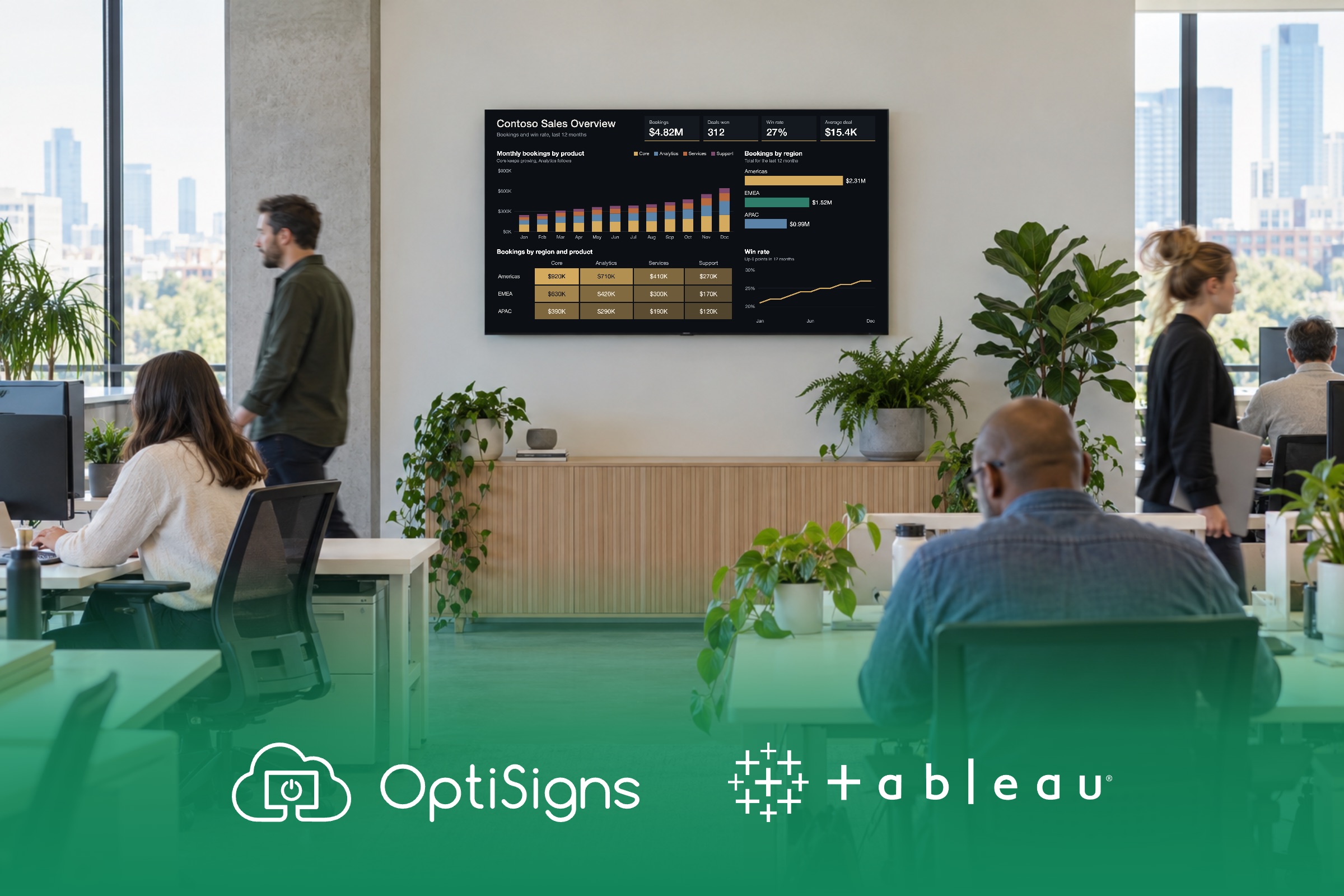
With OptiSigns, you connect Tableau once, pick a view and send it to your TVs. It plays full screen and stays up to date, with no one signing in on the screen. It works with Tableau Cloud, Tableau Server and Tableau Public.
Why put Tableau dashboards on a TV?
Build it once. Let the whole team see it.
A dashboard only helps the people who open it. Your team has already built good ones in Tableau. The gap is getting them out of browser tabs and in front of everyone else.
- Data is already the priority. Salesforce, which owns Tableau, reports that 63% of business leaders describe their organizations as data-driven.1
- Timely answers are still scarce. In the same research, less than half (49%) can reliably generate timely insights.1 A good view shouldn't wait in a tab for someone to open it.
- The wall reaches everyone. A break room TV puts the numbers in front of people with no reason to open a tab.
A TV closes the gap between the tab and the team. It takes a view a few people open and puts it where the whole team works.
- Sales floor. Bookings and targets stay in view, so wins get noticed and gaps get fixed.
- Support team. Queue size and response times sit where everyone can see them, so the team works from the same numbers.
- Plant line. Output and downtime show by line or area, so each crew knows where it stands.
- Warehouse floor. Orders and shipping targets stay on the wall, so the whole shift can see the day's work.
Why is it so hard to keep Tableau on a TV?
The dashboard is fine. The all-day TV is the hard part.
Tableau is built for one person at a desk, and a laptop running Chrome full screen breaks on a TV that stays on all day:
- The TV gets signed out. Tableau Cloud ends a session after two idle hours,2 and MFA is required, so the wall sits on a login screen until someone walks over and signs back in.
- The numbers go stale. A dashboard left open in a browser may not update itself, and refresh extensions are often limited or blocked, so the wall shows old numbers.
- Rotating dashboards takes a hack. Showing several views takes a tab-rotation extension or a home-made web page, so the wall depends on whoever set it up.
- Every TV is a project. Each TV gets its own computer, browser and login to look after, so adding a screen means starting over.
How OptiSigns solves each of these problems
Connect Tableau once, and no one has to sign in on the screen after that.
The usual way
With OptiSigns
The usual way
The TV gets signed out
With OptiSigns
01
OptiSigns signs in for you
OptiSigns signs in to your private Tableau views for you, through a Tableau Connected App that a Tableau admin creates once.
The usual way
The numbers go stale
With OptiSigns
02
Stays up to date
OptiSigns reloads the view on its own, so the numbers stay up to date with no one touching the TV.
The usual way
Rotating dashboards takes a hack
With OptiSigns
03
Rotate a whole workbook
OptiSigns can rotate a whole workbook on one screen, using a playlist with one view per tab.
The usual way
Every TV is a project
With OptiSigns
04
One setup, every screen
You set up one Tableau connection and use it on any number of screens.
1. OptiSigns signs in for you
OptiSigns signs in to your private Tableau views for you, through a Tableau Connected App that a Tableau admin creates once. No one types a password on the TV. The Help Center guide covers the setup.
For your security team. The connection's secret value stays encrypted on OptiSigns' servers and never reaches the screen. It's a setup they can review and approve.
After a restart, a device set to start on its own comes back to the view with no one logging in.
2. Stays up to date
OptiSigns reloads the view on its own, so the numbers stay up to date with no one touching the TV. Each reload is a new sign-in, so a screen on one view keeps working past Tableau Cloud's two-hour idle limit, as long as it reloads more often than that.2
The one thing to know. The TV can only show what Tableau has. If your data updates once an hour, so does the screen, and your Tableau team can update it more often.
3. Rotate a whole workbook
OptiSigns can rotate a whole workbook on one screen, using a playlist with one view per tab. A Custom View gives each team its own filtered version.
Each view plays full screen, with no browser bars or Tableau toolbar.
You don't need a refresh extension or a home-made web page.
4. One setup, every screen
You set up one Tableau connection and use it on any number of screens. Each TV still needs a device to run on, and each screen can show a different view from one account.
In the OptiSigns portal, a Tableau view can go in a playlist, on a schedule or on a split screen beside your other content.
Works with your Tableau setup
Keep your Tableau. Add the TV.
You don't have to make a dashboard public to put it on a TV. The OptiSigns Tableau app connects to private views on Tableau Cloud and Tableau Server, and to public views too.
| Tool | What you can show |
|---|---|
 Tableau Cloud | Private views, connected once |
| Tableau Server | Private views on your own server, connected once |
| Tableau Public | Views already published for anyone to see, with nothing to connect |
Send Tableau snapshots to people who never see the TV
Some of your team never see the wall. Schedule it once and the numbers go to them.
OptiSigns Broadcast sends Tableau snapshots to Microsoft Teams or email on a schedule. The numbers reach the people who work somewhere else. One limit: it can't reach a Tableau Server on a private network.
Running more than Tableau? The full guide to displaying dashboards on a TV covers your other tools.
TABLEAU + OPTISIGNS
Turn your Tableau tabs into a team scoreboard
Connect Tableau once and put your views on the wall. OptiSigns signs in for you and keeps them up to date.


