


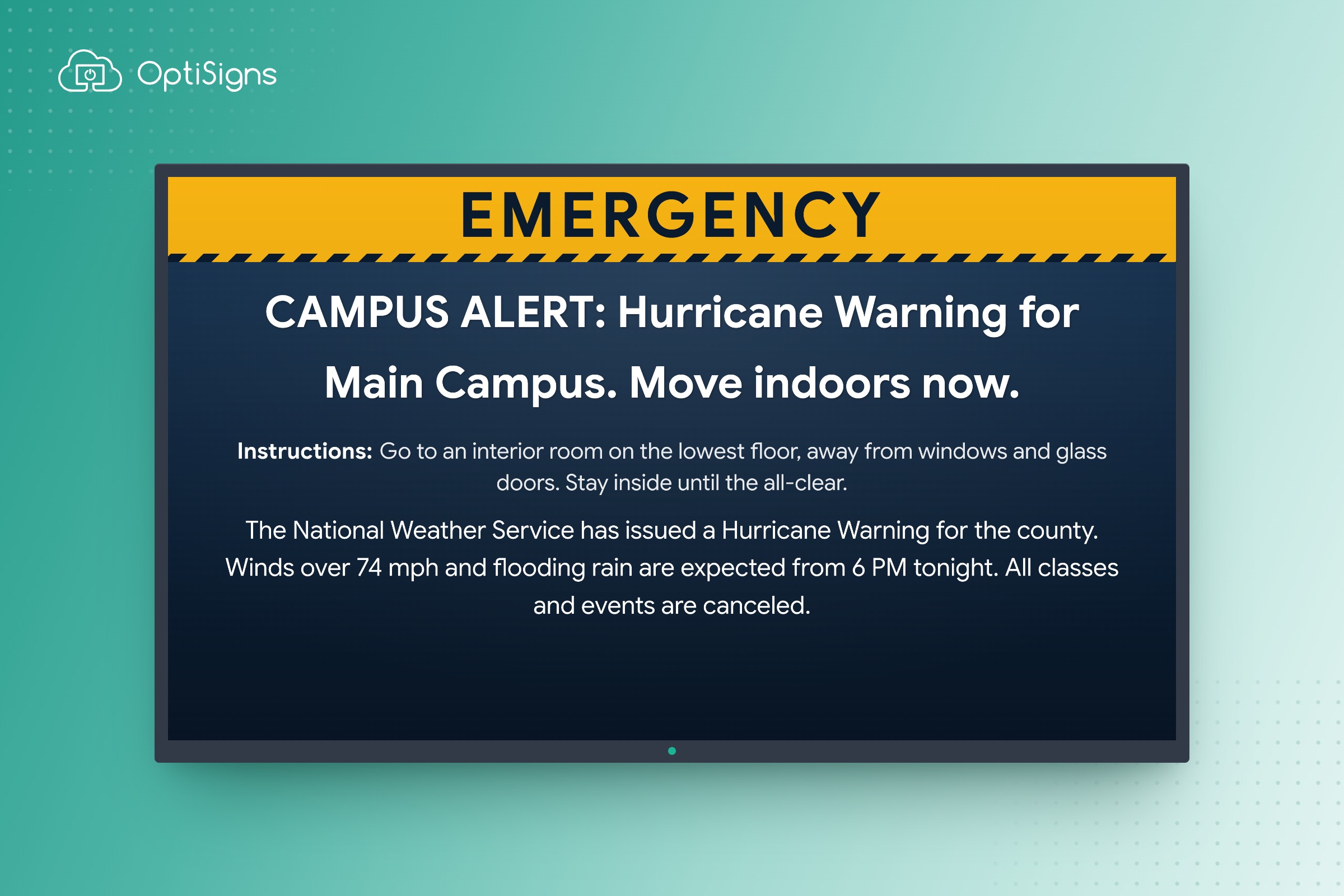
With OptiSigns, you connect your alert system once, pick your screens and let safety's alerts take over. Every screen you picked shows the alert full screen, in safety's own words. When it ends, the screens go back to normal, with no one walking the halls to change a TV.
Why put emergency alerts on your screens?
An alert only protects the people who see it. Your campus already sends alerts to phones, inboxes and the PA. The gap is the screens on every wall, which keep showing the lunch menu while the alert goes out.
- Alerts are already being sent. More than 2,000 federal, state, local, tribal and territorial alerting authorities use FEMA's national system to send public alerts and warnings.1
- Screens are on the walls. Hallway TVs, cafeteria and lobby displays and corridor signs reach visitors, substitute teachers and students whose phones are in a backpack.
- Yet the two rarely meet. Safety owns the alert tool and IT owns the screens, so the alert reaches every phone while the hallways keep playing announcements.
OptiSigns closes that gap. It turns screens that play announcements into screens that tell people what to do. No one running to a TV. No second message to write.
Why is it so hard to get right?
Alert tools are built to reach phones and inboxes, and the usual workarounds break on a screen that plays a menu all day:
- Screens get left out. Alerts reach phones, email and the PA but not the hallway TVs, so the gap shows up in a drill, or in a real emergency.
- Alerts don't clear on time. A warning stays up long after the all-clear, or disappears while people still need it, so people stop trusting what the screens say.
- Drills look real. A test message takes over every screen in the building, so a routine drill scares the people who didn't know it was planned.
How OptiSigns solves each of these problems
OptiSigns treats an alert as a takeover, not as content. It pushes aside whatever is playing, then hands the screens back when the alert ends.
The usual way
With OptiSigns
The usual way
Screens get left out
With OptiSigns
01
One alert, every hallway
An alert belongs on every screen in the area it's about, in the words safety wrote.
The usual way
Alerts don't clear on time
With OptiSigns
02
One all-clear clears every screen
An alert should end the way it started: from the alert system, not from someone walking the halls with a remote.
The usual way
Drills look real
With OptiSigns
03
Drills stay drills
Run drills as often as you need, without a test message taking over the building.
1. One alert, every hallway
An alert belongs on every screen in the area it's about, in the words safety wrote. When an alert arrives, every screen you picked switches to it full screen, replacing whatever was playing. The screen in the farthest building shows the same alert as the one outside the safety office.
- Safety's words, unchanged. Screens show the sender's own title, description and instructions, so the hallway says exactly what safety wrote.
- The right building only. Screens tagged with the area names your alert system uses show only the alerts for their area, so a spill in one lab doesn't take over the whole campus.
- Only alerts that matter. Filters keep minor notices off the screens, so a takeover means something.
2. One all-clear clears every screen
An alert should end the way it started: from the alert system, not from someone walking the halls with a remote. Once it's on, the alert system's own cancel or all-clear clears every screen you picked. An all-clear shows briefly, then the screens go back to their normal content.
If no one sends an all-clear, the screens still go back on their own when the alert ends.
The one thing to know. Screens go back at the time the alert says it ends, even if the emergency is still going on. That end time is set by whoever sends the alert, so it lives in safety's alert tool, not on the screens.
3. Drills stay drills
Run drills as often as you need, without a test message taking over the building. Every alert says whether it's real, an exercise or a test, and OptiSigns can show only the real ones.
Drills then run through the alert system without ever reaching a hallway screen. When the screens are part of the drill, exercise alerts can show too, so your team sees every screen respond before a real emergency.
Works with your alert system
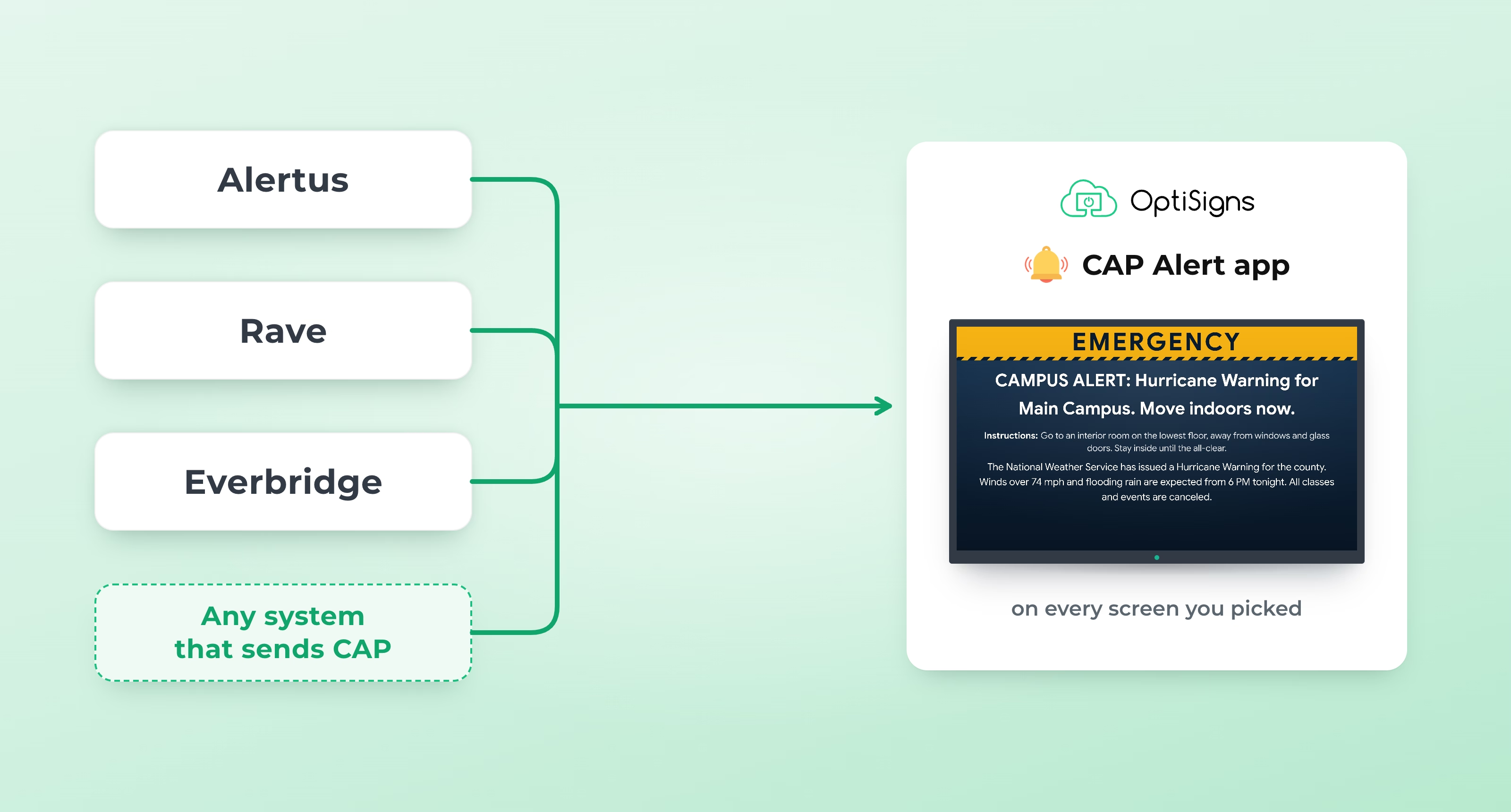
OptiSigns works with any alert system that can send CAP alerts, the open standard for emergency alerts, to a web address.2 That includes Alertus, Rave and Everbridge. Campus safety keeps the tool it already uses, and IT keeps the screens. See what the CAP Alert app can show.
- Optional login, built in. A username and password on the web address means only people with the login can post an alert. Without one, anyone who has the address can.
For setup, see How to Use the CAP Alert App.
ALERTS + OPTISIGNS
Turn every hallway screen into an emergency sign
Connect your alert system once, and every screen you picked can carry safety's message, clear with the all-clear and stay quiet during drills, once it's set.


