


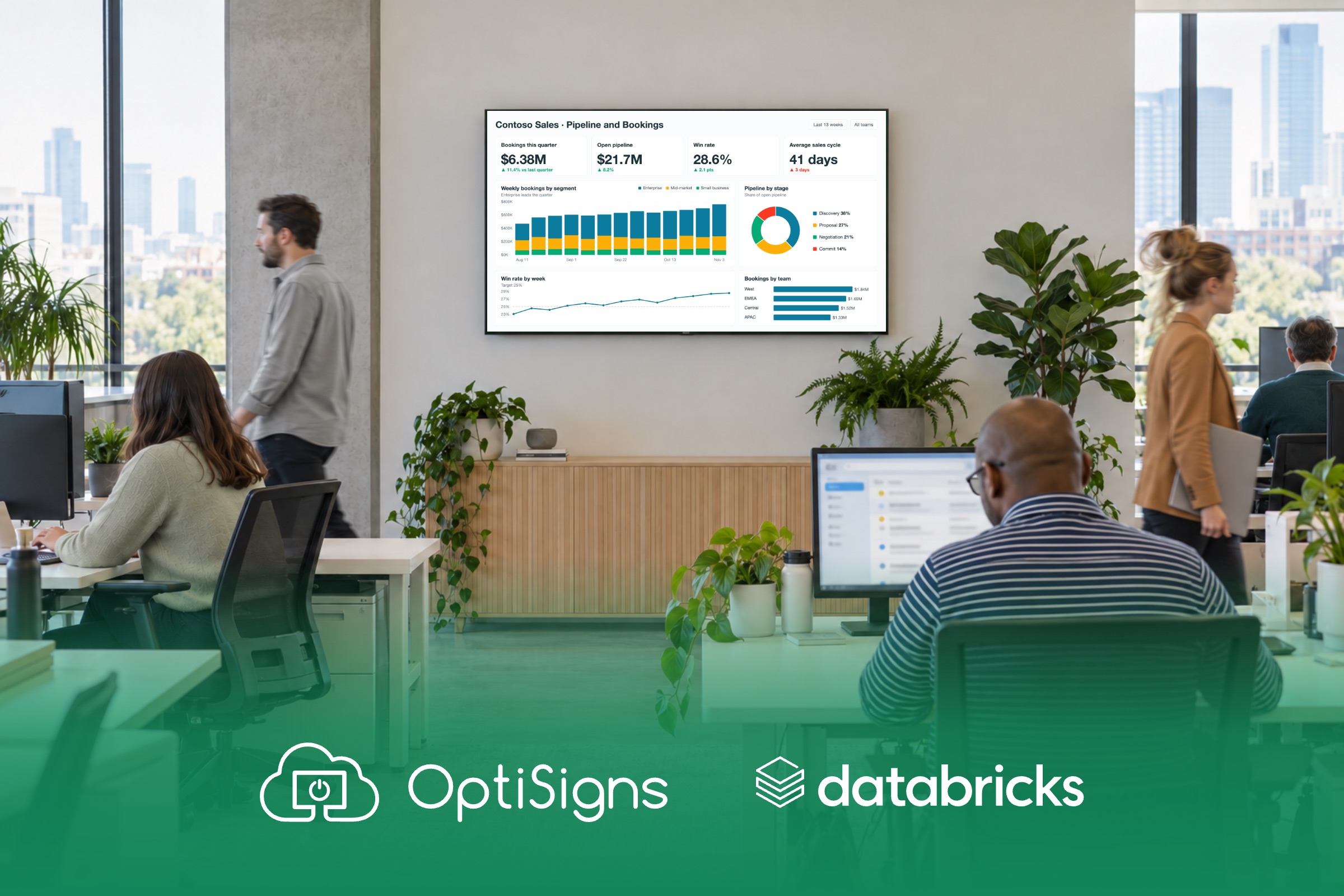
With OptiSigns, you connect your Databricks workspace once, pick a published AI/BI dashboard and send it to your TVs. It plays full screen and refreshes in place on an interval you set, with no Databricks login on the screen. The secret OptiSigns uses to connect stays on OptiSigns servers and never reaches the TV.
Why put Databricks dashboards on a TV?
Build it once in Databricks. Let the whole floor see it.
Dashboards only change results when people see them. Most companies have already built good dashboards. The gap is getting them in front of the team.
- The investment is already made. Businesses spend more than $70 billion a year on business intelligence software.1
- Most of it goes unseen. Only about a quarter of employees actively use dashboard and analytics tools.2
- Visibility is what moves the numbers. People reach their goals more often when they track progress, and even more when that progress is shared.3
A TV on the wall closes that gap. It takes the AI/BI dashboard your data team already published to the people who never open Databricks. That's the sales floor, the operations center, the factory line or every store in a chain.
Why is it so hard to keep a Databricks dashboard on a TV?
Databricks works. Keeping it on a TV all day is the hard part.
Databricks dashboards are built for one signed-in person at a desk, and the usual workarounds break on a shared screen that runs all day:
- One setup per TV. Each TV needs its own computer and its own Databricks sign-in, because the dashboard link and the simple embed both ask the viewer to sign in.45 Adding a screen means doing it all again.
- IT can't approve it. A personal Databricks login left signed in on a shared TV rarely gets past a security review. The no-login route means your own app, a service principal and tokens that expire every hour,4 so the project waits on engineering time.
- Built for desks, not walls. Databricks documents no automatic reload for an open dashboard, so the TV can keep showing the numbers it first loaded until someone walks over and reloads it. Without a refresh schedule, those results can be up to 24 hours old.6
How OptiSigns solves each of these problems
Connect Databricks once in the portal. The screen never signs in after that.
The usual way
With OptiSigns
The usual way
One setup per TV
With OptiSigns
01
Connect once, show everywhere
An admin connects your Databricks workspace to OptiSigns once.
The usual way
IT can't approve it
With OptiSigns
02
No login on the screen
OptiSigns connects with a service principal, a Databricks account made for apps, not a person's login.
The usual way
Built for desks, not walls
With OptiSigns
03
Centrally managed, built for the TV
You manage Databricks dashboards in the OptiSigns portal with the rest of your content, and each screen refreshes them on its own.
1. Connect once, show everywhere
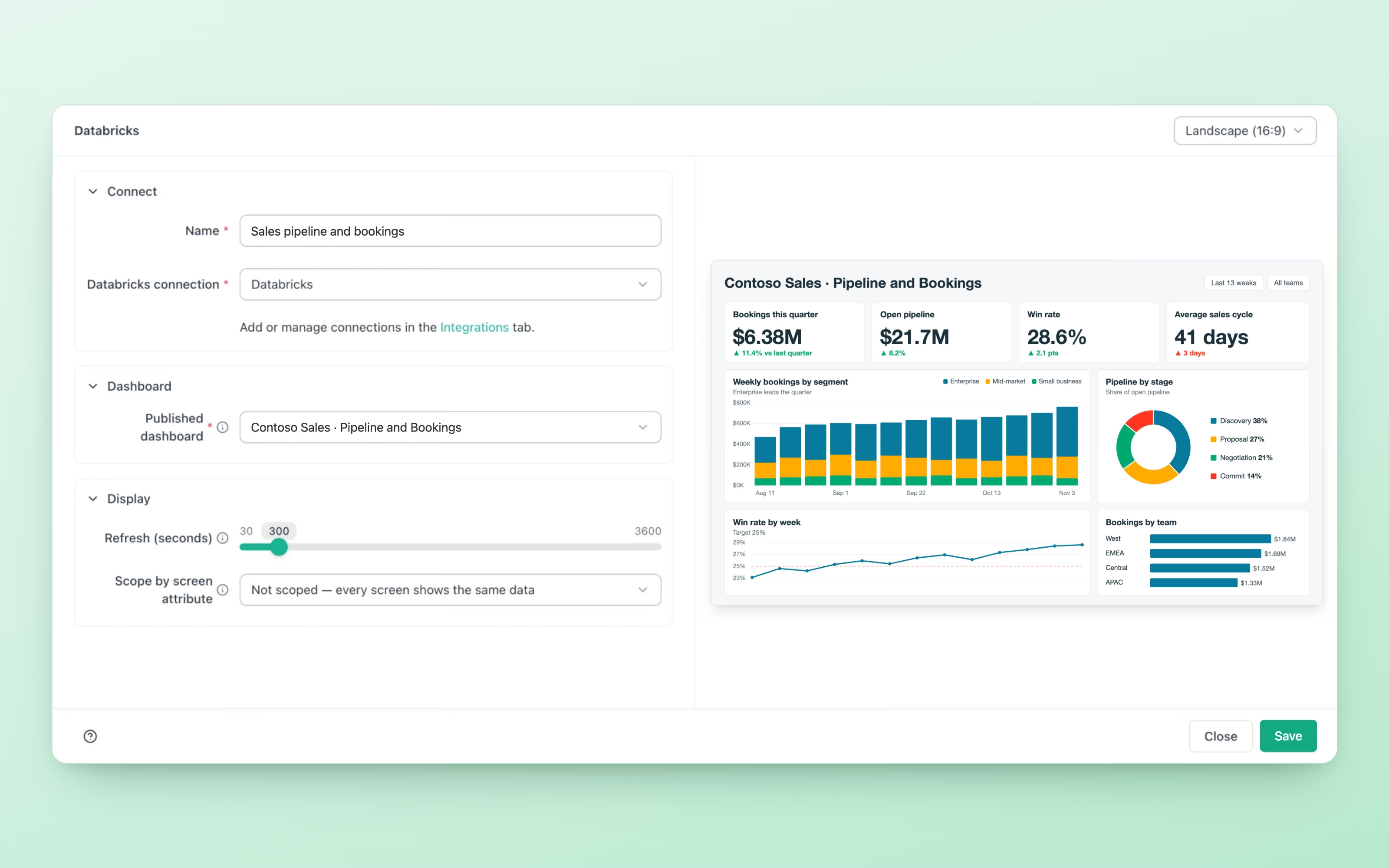
An admin connects your Databricks workspace to OptiSigns once. After that, you pick a dashboard from a list and send it to one screen or a hundred, like any dashboard you display on office screens with OptiSigns. No computer at the TV and no sign-in. The setup guide shows each step.
2. No login on the screen
OptiSigns connects with a service principal, a Databricks account made for apps, not a person's login.
- No password on the TV. The screen never signs in to Databricks. It gets a short-lived pass for one dashboard, renewed at least every hour.
- The secret stays with OptiSigns. The service principal's secret is stored encrypted on OptiSigns servers and never sent to the screen. OptiSigns has SOC 2 Type II certification.
- You choose what it sees. The screen shows only the dashboards you share with OptiSigns' service principal.
- You choose where it shows. A Databricks workspace admin allows OptiSigns' player address to embed dashboards.
3. Centrally managed, built for the TV
You manage Databricks dashboards in the OptiSigns portal with the rest of your content, and each screen refreshes them on its own.
- Every screen, one portal. Add Databricks dashboards to playlists and schedules with your other content. You can copy them, set an end date and preview them before they go live.
- Made for the wall. The screen refreshes the dashboard on an interval you set. The new view loads in the background and swaps in, so the picture doesn't blank between refreshes. If the internet drops while it's showing, the last view stays up.
- One dashboard, many locations. Give each screen a value, such as its store name. If every dataset in the dashboard filters on that value, each screen shows only its own numbers. It picks the right numbers for each screen. It doesn't lock one location out of another's data.
- Your schedule sets the cost. OptiSigns runs no queries of its own, so your refresh schedule in Databricks sets most of the warehouse cost.
The one thing to know. The screen shows Databricks' saved results, so it's only as fresh as the dashboard's refresh schedule. Set that schedule in Databricks to how fresh the wall needs to be.
Works with Databricks workspaces on AWS and Azure
Published AI/BI dashboards, from workspaces on AWS and Azure.
The OptiSigns Databricks app puts published AI/BI dashboards on your screens. Drafts never reach the wall.
- Same look as Databricks. The screen shows the published dashboard as it looks in Databricks.
- Runs on OptiSigns players. It plays on OptiSigns-supported players that show web apps.
Running more than Databricks? The full guide on how to display dashboards from any tool on a TV covers your other tools, including Snowflake dashboards on a TV and Power BI reports on a TV or screen.
DATABRICKS + OPTISIGNS
Turn your Databricks dashboards into a scoreboard the whole team sees
Connect your Databricks workspace once and put your dashboards on every screen. No Databricks login on the TV. OptiSigns adds no queries of its own.
- HG Insights, Business Intelligence Market Report
- BARC and Eckerson Group, BI and analytics adoption study
- Harkin et al., Psychological Bulletin (2016), meta-analysis of 138 studies
- Databricks Docs, embed a dashboard
- Databricks Docs, share a dashboard
- Databricks Docs, dashboard caching and data freshness


