


Try OptiSigns Instantly in Your Browser And See How Easy Digital Signage Can Be
Using OptiSigns through a Web Player is one of the fastest and simplest ways to start your digital signage journey. Whether you're trying out our platform or need a quick setup, this browser-based method works seamlessly on most devices.
Step 1: Pair Your Screen With OptiSigns
- Open your preferred browser and go to: webplayer.optisigns.com.
- A unique pairing code will appear on the screen like below.
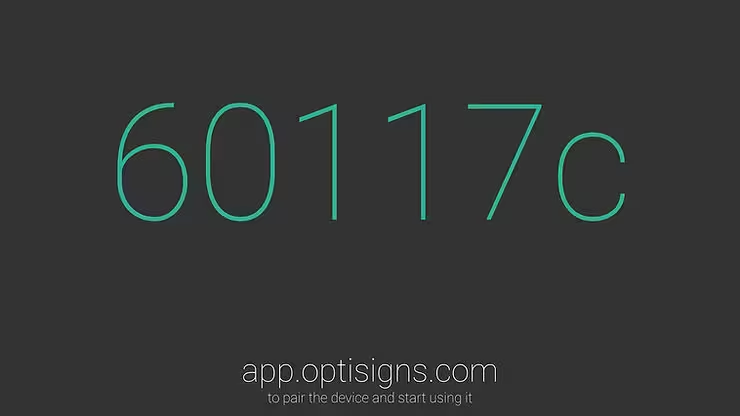
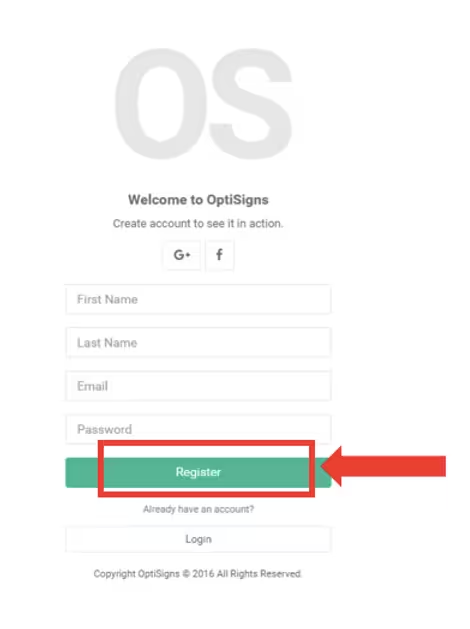
- Next: Use a desktop, laptop, tablet, or mobile phone to log into your OptiSigns account at app.optisigns.com. If you don’t have an account, sign up for free—it only takes a minute!
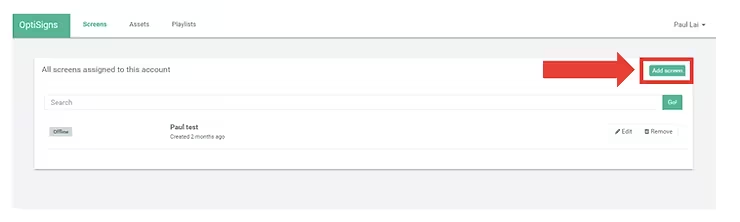
- Select the “Add screen” button in your OptiSigns dashboard.
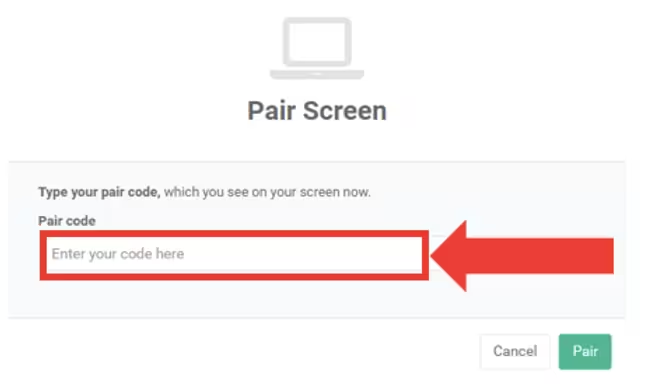
- Enter the pairing code displaying in the other browser as mentioned in step one.
- Click “Pair” to connect the web player screen to your OptiSigns account.
- If you don't see the code, revisit the first step to display it again.
Step 2: Upload Your Content and Create Playlists
- Navigate to the "Files/Assets" tab in your OptiSigns dashboard.
- Upload images, videos, or documents you want to display.
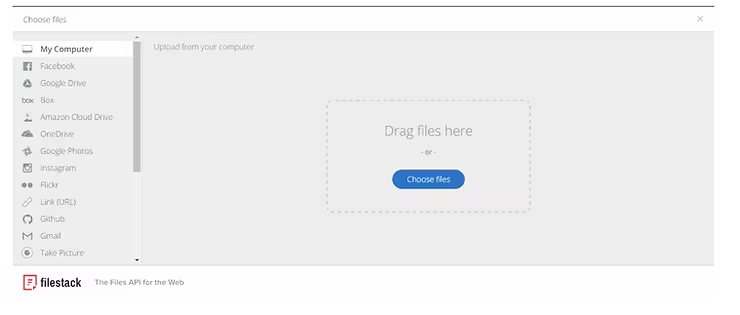
💡 Not Sure What Content To Display? OptiSigns offers 140+ powerful app integrations and thousands of customizable premade templates to make your digital signage setup effortless and impactful.
- Organize your content by creating playlists.
- Drag and drop your uploaded media into playlists for seamless scheduling and content management.
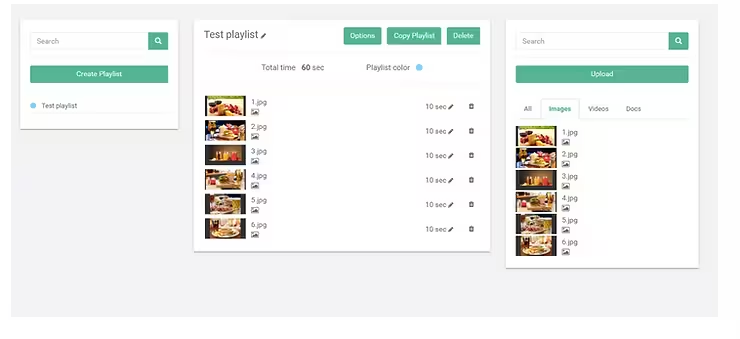
Step 3: Assign Playlists to Your Screen
- Go back to the Screens tab in your OptiSigns dashboard.
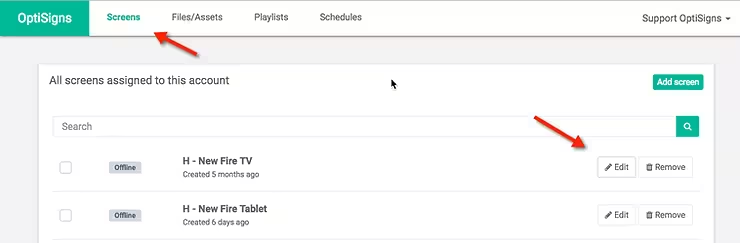
- Click “Edit” on the screen you want to update.
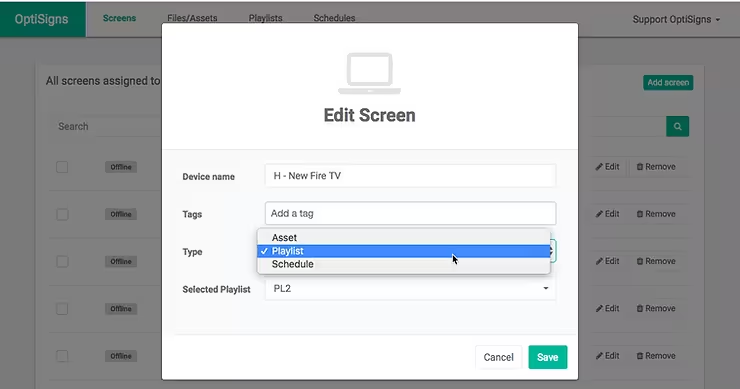
- Assign the playlist or individual assets directly to the screen.

That's it! Now you've successfully displayed content by using our Web Player!
Need Help? We're Here for You!
If you have any questions or need further assistance with setting up OptiSigns via Web Player, please feel free to reach out to us by emailing [email protected]. Our team is ready to help you get started.
Ready to Get Started?
Power your screens with smart scheduling, automation, and rich integrations.
Start Your Free Trial →


